
PART 2: WRITING WORD 2003 DOCUMENTS
CHAPTER 4
OVERVIEW OF DOCUMENT EDITING
Target:
After completing chapter 4, students will:
- Understand the importance of Word text editing program applied in office work
- Know Vietnamese typing tools and encodings to type Vietnamese on the computer.
- Understand the components on the editing screen, function buttons, toolbars and master the initial settings of text editing such as: starting the editing program, creating a new document, saving the document, closing the document, exiting the text editing and knowing the operations to set the paper size and text margins of the document.
4.1. GENERAL INTRODUCTION
Microsoft Word is a high-end word processing software running under the Windows environment, called Word for short, specialized in editing all kinds of documents, books, magazines, ... for office work. Word has powerful features such as: graphical interface through the Menu system and dialog boxes with a very high aesthetic form, the ability to communicate data with other applications, has utility and auxiliary programs to help create special documents, has programs to check, correct spelling errors, typing shortcuts, Macros, ... to help users edit foreign documents and increase the speed of text processing: powerful and easy-to-use table creation function, ...
4.1.1. Basic concepts
- Character: Is a key that can be printed on paper and pressed from the character key area except the Ctrl, Alt, Shift and Cap Lock keys.
- Word: Is a set of characters placed between two white spaces.
- Sentence: Is a set of words placed between two punctuation marks (period (.))
- Line: Is a set of words, starting from the left margin to the right margin on the screen.
- Paragraph: Is a set of words, sentences, placed between two paragraph marks (Enter key)
- Page: Is a collection of lines, paragraphs, and other objects displayed on the screen.
- Chapter (Section): Is a collection of paragraphs, pages placed between two chapter breaks (End of Section)
- Document: Is a collection of chapters and is saved on disk with a file.
4.1.2. How to type Vietnamese in Telex mode
Type accents | |||
oo = cell | aa = â | Huyen: f | Color: s |
ee = ê | dd = đ | Question: | Fall: x |
aw = ă | ow = oh | Heavy: j | Delete mark: z |
uw=ư | |||
Maybe you are interested!
-

 Tourism Geography Part 1 - Hanoi College of Tourism - 2
 -
 Business Communication Part 1 - Hanoi College of Tourism - 10
 -
 Tourism Geography Part 1 - Hanoi College of Tourism - 20
 -
 Office Informatics Information Technology Profession - College - Dong Thap Community College - 2
 -
 Food fermentation technology Part 2 - Food College - 11
4.1.3. How to type Vietnamese in VNI mode
- Key number 1 = Sharp accent
- Number key 2 = Grave accent
- Number key 3 = Question mark
- Number key 4 = Tilde
- Number key 5 = Heavy accent
- Number key 6 = Caret for letters â, ê and ô
- Number key 7 = Whiskers of the letters ơ and ư
- Number 8 key = Moon sign of letter ă
- Number key 9 = Hyphen of letter d
- Number key 0 = Remove accent (delete accent)
4.1.4. Introduction to Vietkey typing software
- Run Vietkey, select Typing style. Dialog box appears:
Select
language required
Select typing mode
Vietnamese
Telex or VNI type
Click here to activate help
Click here to exit the program
Set Vietkey program to display on Desktop
Set Vietkey program to display on Taskbar
- Select Code Table, a dialog box appears:
Select the code set to type Vietnamese
Select typing mode between languages
Select the mechanism to remove accents in Vietnamese typing
4.1.5. Starting Word
Before starting Word, we must start Windows. On the Windows screen we always see a small arrow or pointer, which is the mouse to control this pointer. Moving the mouse will make the corresponding pointer on the screen move accordingly.
To start Word, do the following:
- Method 1: Left-click on the Start button, select Program, then select Microsoft Word
- Method 2: Left click on the Word icon (icon)
) on the toolbar.
- Method 3: Go to Start, select Run. Then type the keyword Word in the command line to start the editing program.
4.1.6. Exit text editor.
Step 1 : Go to the File menu, select Exit. If the text has not been saved, the following dialog box will appear:
Step 2 : Click on the function buttons:
Yes: If you want to record text and name the document
(In case the document does not have a specific name yet).
No: Do not save text
Cancel : Does not exit text editing.
4.2. INTRODUCTION TO EDITING SCREEN.
4.2.1. Title bar
The bar contains the name of the text file, the name of the working program.
Specifically: The name of the program currently running is Microsoft Word.
The name of the currently opened document is Summary (if there is no specific name, Word will assign a default name Document 1 or Document 2... )
4.2.2. Main menu
The Menu bar contains all the functions of Word editing.
File: Contains functions related to text files.
Edit: Contains functions for editing text
View: Contains functions about view mode
Insert: Contains functions for inserting objects into text.
Format: Contains text formatting functions Tools: Contains text editing support tools Table: Contains table functions
Window: Contains a list of open text files.
Help: User Help
Note:
- To open these menus, in addition to clicking on the menu itself, you can use hotkeys to open them. Each menu name has an underlined character. Combining the Alt key combination + the underlined character will open the corresponding menu.
- To close (exit) the menu, in addition to clicking elsewhere, you can click again on the open menu name or press the ESC key on the keyboard.
4.2.3. Toolbar (Standard)
| New | Open new document | |
Open | Open an existing document on your computer | ||
Save | Save text to computer disk | ||
Printing text | |||
Print Preview | Preview text before printing | ||
Spelling and Grammar | Check grammar and spelling | ||
Cut | Cut text | ||
Copy | Copy text | ||
Paste | Paste text | ||
Format Painter | Copy format (attributes) | ||
Undo | Undo the last action | ||
Insert Table | Insert table into text | ||
Insert Worksheet | Insert an Excel spreadsheet into the document |


4.2.4. Formatting bar
Contains commonly used text properties.
Normal | Text style (default is Normal) | |
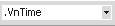
Font | Font Name (default is .VnTime) | |
Font Size | Font size (default is 13 or 14) | |
Bold | Bold | |
Italian | Italic | |
Underline | Underlined letters |
Align Left Align Left
Center Center
Align Right Justify Justify Numbering
Bullets Bullet points
Decrease Indent Move left by 1 Tab Increase Indent Move right by 1 Tab Outside Border Select the border of the table
4.2.5. Ruler
Used to align the left and right margins of text, change column spacing of tables.
4.2.6. Text area
This is the largest area for text entry.
4.2.7. Horizontal & Vertical Scroll bar
- When moving vertically through the entire document use the vertical scroll bar.
- Move horizontally to the text using the horizontal scroll bar.
4.2.8. Status bar
Displays the status of the document such as page number, section number, total number of pages in the document, cursor position such as line and column (ln, col)
4.3. OPERATIONS ON TEXT FILES
4.3.1. Document storage
- Go to File menu, select Save, dialog box appears:
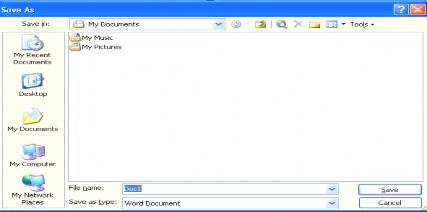
- Save In tells you which folder your document is located in (by default it is in the My Documents folder). You can change the folder containing the document by selecting another folder in the Save In box.
- Enter the document name in the File name box (Note: the document name can be written with spaces and typed without accents). After entering the document name, press the Enter key on the keyboard or click the Save button on the right.
Note: To save the document with a different name, click File, select Save as, and enter a new name.
4.3.2. Open document
Step 1 : Go to File menu, select Open, a dialog box appears
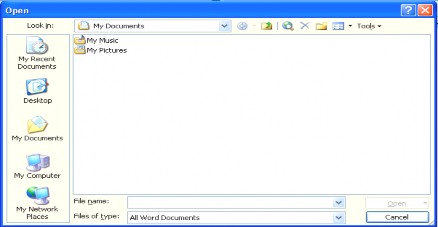
Step 2 : Select the document to open from the file name list. Then click the Open button.