constraints.gridx = 2;
constraints.gridy = 5;
constraints.gridheight = 1;
constraints.gridwidth = 1;
constraints.weightx = 2.0; layout.setConstraints(buttons[7], constraints);
Maybe you are interested!
-
 Java programming Web design profession - Dalat College of Technology - 10
 -
 Advanced XML Web Programming - Dalat College of Technology - 10
 -
 Advanced XML Web Programming - Dalat College of Technology - 1
 -
 Advanced XML Web Programming - Dalat College of Technology - 5
 -
 SQL server database management system course, web design profession, Dalat College of Technology - 14
// Set the step for the 9th button constraints.gridx = 3;
constraints.gridy = 6;
constraints.gridheight = 1;
constraints.gridwidth = 1;
constraints.weightx = 3.0; layout.setConstraints(buttons[8], constraints);
// Put the buttons in the program frame for (int i=0;i<9;i++)
f.add(buttons[i]); f.pack(); f.setVisible(true);
}
}
Program execution results:
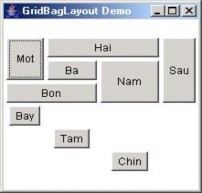
Figure 4.8 GridBagLayout
4.4.4.5 Null Layout
A container presented in the Null Layout style means that the programmer has to do everything himself from defining the size of the container, as well as the size and position of each component object within the container.
To set the layout as Null Layout for a container, we just call the setLayout(null) method with the parameter null.
Some methods of the Component abstract class are used to position and size components when they are placed in a free-form display container:
Public void setLocation(Point p) o Public void setSize(Dimension p) o Public void setBounds(Rectangle r)
For example :
MyButton.setSize(new Dimension(20, 10)); o MyButton.setLocation(new Point(10, 10)); o MyButton.setBounds(10, 10, 20, 10);
import java.awt.*;
class NullLayoutDemo
{
public static void main(String args[])
{
30);
Frame fr = new Frame("NullLayout Demo"); fr.setLayout(null);
Button buttonOk = new Button("OK"); buttOk.setBounds(100, 150, 50,
Button buttCancel = new Button("Cancel");
buttCancel.setBounds(200, 150, 50, 30); Checkbox checkBut = new
Checkbox("Check box", true);
checkBut.setBounds(100, 50, 100, 20);
List li = new List(); for (int i=0; i<5; i++)
{
li.add(Integer.toString(i));
}
li.setBounds(200, 50, 50, 50); fr.add(buttOk); fr.add(buttCancel);
fr.add(checkBut);
fr.add(li);
fr.setBounds(10, 10, 400, 200); fr.setVisible(true);
}
}
Program execution results:
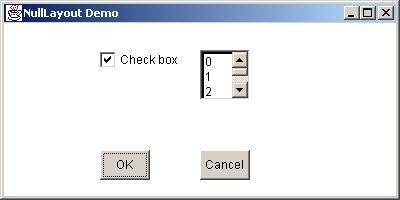
Figure 4.9 Null Layout
4.4.5.Container frame objects
As we know, container is a container object that has the ability to manage and contain other objects (components) in it.
Components can only be used when they are placed in a container object.
Each container is usually associated with a LayoutManager.
(FlowLayout, BorderLayout, GridLayout, GridBagLayout, Null Layout) specifies how components are presented and arranged in a container.
Types of containers in java: Frame, Panel, Dialog, ScrollPanes.
4.4.5.1 Frame container
java.lang.Object+-- java.awt.Component
+-- java.awt.Container
+-- java.awt.Window
+--java.awt.Frame
A Frame container is a solid top-level window that includes a title and a border like other regular Windows applications. Frame containers are often used to create the main window of applications.
The Panel container has a default layout manager (LayoutManager) called FlowLayout.
4.4.5.2 Panel frame
java.lang.Object+-- java.awt.Component
+-- java.awt.Container
+--java.awt.Panel
The Panel container has a default layout manager (LayoutManager) called FlowLayout.
For Panel containers, Panels can be nested, so Panel containers are often used to arrange groups of components inside another container.
For example: import java.awt.*;
public class PanelDemo extends Frame
{
private Button next, prev, first; private List li; public PanelDemo(String sTitle)
{
super(sTitle); next = new Button("Next >>"); prev = new Button("<< Prev"); first = new Button("First");
Panel southPanel = new Panel(); southPanel.add(next); southPanel.add(prev); southPanel.add(first); // BorderLayout.SOUTH:
lower region
this.add(southPanel, BorderLayout.SOUTH);
Panel northPanel = new Panel(); northPanel.add(new Label("Make a
Selection"));
// BorderLayout.NORTH: upper area this.add(northPanel, BorderLayout.NORTH);
li = new List(); for(int i=0;i<10;i++)
{
li.add("Selection" + i);
}
this.add(li, BorderLayout.CENTER);
}
public static void main(String arg[])
{
Container f = new PanelDemo("Panel Demo");
f.setSize(300, 200);
f.setVisible(true);
}
}
Program execution results:
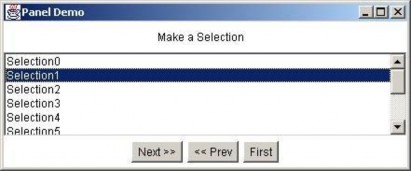
Figure 4.10 Panel Container
4.4.5.2 Dialog Container
java.lang.Object+-- java.awt.Component
+-- java.awt.Container
+-- java.awt.Window
+--java.awt.Dialog
Dialog is a frame class containing the title Frame and is also known as popup window. There are two common types of dialogs:
Modal Dialog: will lock all other windows of the application while this dialog is still displayed.
Non-Modal Dialog: can still go to other windows of the application when this dialog is displayed.
A Dialog window must always be attached to an application window (Frame).
To create a Dialog container object we can use one of its constructors:
public Dialog (Frame parentWindow, boolean isModal) public Dialog (Frame parentWindow, String title, boolean isModal) parentWindow: parent window title: title of Dialog isModal: true -> is modal Dialog isModal: false -> is non-modal Dialog
(or non-modal)
4.5.Incident/Event Handling
4.5.1.Event-Handling Model
Above we only mentioned the issue of designing the application program interface without mentioning the issue of event handling. Events are generated when the user interacts with the program interface (GUI). Common interactions include: moving, clicking the mouse, pressing a button, selecting a MenuItem in the menu system, entering data in a text box, closing the application window, etc. When an interaction occurs, an event is sent to the program. Information about the event is usually stored in an object derived from the AWTEvent class. The event types in the java.awt.event package can be used for both AWT and JFC components. For the JFC library, there are new event types in the java.swing.event package.
Event classes of the java.awt.event package
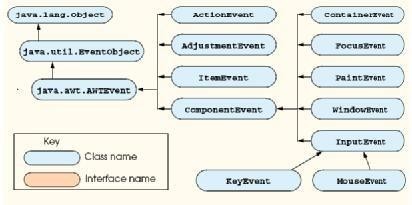
Figure 4.11 Event class of java.awt.event package
There are three important elements in the event handling model:
- Event source
- Event (event object)
- Event listener
Event source: is the component of the interface that the user interacts with.
Event: A summary of information about the event that occurred, including a reference to the source of the event and the event information that will be sent to the listener for processing.
Listener: A listener is a class object that implements one or more interfaces in the java.awt.event or java.swing.event (for JFC components). When notified, the listener receives the event and processes it. The event source must provide methods to register or cancel a listener. The event source must always have a listener associated with it, and it will notify the listener when the event occurs.
So the programmer needs to do two things:
Create and register a listener for a component on the GUI. Implement event management and handling methods.
The listener interfaces of the java.awt.event package
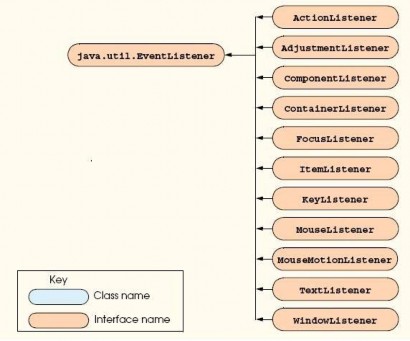
Figure 4.12 The listening interfaces of the java.awt.event package
An Event-Listener object listens to different events that arise from components of the program interface. For each different event that arises, the corresponding method in the Event-Listener will be called.
Each Event-Listener interface consists of one or more methods that need to be implemented in classes that implement that interface. The methods in interfaces are abstract, so any class (listener) that implements the interface must implement all of those methods. Otherwise, the listeners will become abstract classes.
4.5.2.Handling mouse events
Java provides two mouse event listeners, MouseListener and MouseMotionListener, to handle mouse events. Mouse events can be “trapped” to any GUI component that derives from java.awt.component.
Methods of the MouseListener interface:
public void mousePressed(MouseEvent event): called when a mouse button is pressed and the mouse pointer is over the component.
public void mouseClicked(MouseEvent event): called when a mouse button is pressed and released on the component without moving the mouse.
public void mouseReleased(MouseEvent event): called when a mouse button is released after dragging.
public void mouseEntered(MouseEvent event): called when the mouse pointer enters the boundary of a component.
public void mouseExited(MouseEvent event): called when the mouse pointer leaves the boundary of a component.
Methods of the MouseMotionListener interface:
public void mouseDragged(MouseEvent even ): this method is called when the user presses a mouse button and drags over a component.
public void mouseMoved(MouseEvent event): this method is called when the mouse is moved over the component.
Each mouse event handler has a MouseEvent parameter that contains information about the mouse event that occurred, such as the x, y coordinates where the mouse event occurred. The corresponding methods in the interfaces are automatically called when the mouse interacts with a component.
To know which mouse button the user has pressed, we use the methods and constants of the InputEvent class (which is the parent class of the MouseEvent class).
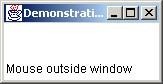
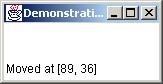
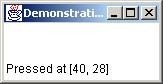
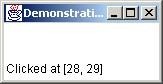
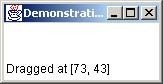
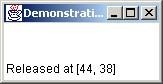
For example, the MouseTracker program below illustrates the use of the methods of the MouseListener and MouseMotionListener interfaces to “trap” and handle mouse events, respectively.
import java.awt.*; import java.awt.event.*; public class MouseTracker extends Frame implements MouseListener, MouseMotionListener
{
private Label statusBar;
// set up GUI and register mouse event handlers public MouseTracker()
{ super( "Demonstrating Mouse Events" ); statusBar = new Label(); this.add( statusBar, BorderLayout.SOUTH ); // application listens to its own mouse events
addMouseListener( this ); addMouseMotionListener( this ); setSize( 275, 100 );
setVisible( true );
}
// MouseListener event handlers
// handle event when mouse released immediately
// after press
public void mouseClicked( MouseEvent event )
{
statusBar.setText( "Clicked at [" + event.getX() + ", " + event.getY() + "]" );
}
// handle event when mouse pressed public void mousePressed( MouseEvent event )
{
statusBar.setText( "Pressed at [" + event.getX() + ", " + event.getY() + "]" );
}
// handle event when mouse released after dragging public void mouseReleased( MouseEvent event )
{
statusBar.setText( "Released at [" + event.getX() + ", " + event.getY() + "]" );
}
// handle event when mouse enters area
public void mouseEntered( MouseEvent event )
{
statusBar.setText( "Mouse in window" );
}
// handle event when mouse exits area public void mouseExited( MouseEvent event ) { statusBar.setText( "Mouse outside window" );
}
// MouseMotionListener event handlers
// handle event when user drags mouse with button pressed public void mouseDragged( MouseEvent event )
{
statusBar.setText( "Dragged at [" + event.getX() + ", " + event.getY() + "]" );
}
// handle event when user moves mouse public void mouseMoved( MouseEvent event )
{
statusBar.setText( "Moved at [" + event.getX() + ", " + event.getY() + "]" );
}
// execute application
public static void main( String args[] )
{
MouseTracker application = new MouseTracker();
}
} // end class MouseTracker
Program execution results: