
48
III. CONCLUSION
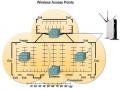
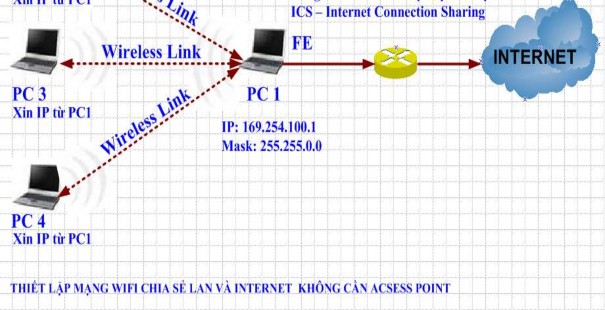
So we have connected PC1 and PC2 together without a network cable but by Wireless waves. In this Lab, PC1 plays the role of an Access Point broadcasting WiFi allowing PCs to share files with each other and share internet connection with other PCs. PC2 is a computer that catches the WiFi signal and establishes a connection between them. We can expand this model with many computers connected together and can set up a wireless LAN network within the office or company as illustrated below.
Maybe you are interested!
-
 Research on wireless network security solutions based on RADIUS - 1
 -
 Building a system to monitor water level, temperature and send warnings via SMS/GSM network - 2
 -
 Network design - Master Tran Van Long, Master Tran Dinh Tung Compiled - 24
 -
 Fostering students' self-study ability in teaching some knowledge of Mechanics and Electromagnetism in high school Physics with the support of social network Facebook - 21
 -
 Description of the Mlp Neural Network Training Algorithm Using Backpropagation Learning with Overshoot Step. Algorithm for Calculating Overshoot Step
Exercise 3
TP – LINK WIRELESS ROUTER CONFIGURATION
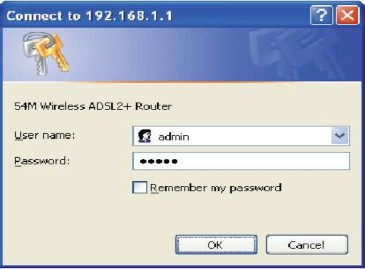
Part 1: Steps to configure TP-Link TD W8910G Wireless Router Step 1: Login to the homepage
Go to web browser, type address http://192.168.1.1
Enter username: admin password: admin
Click OK to enter Router
Step 2: Go to Quick Setup and enter the VPI and VCI values of the service provider.
VPI - Virtual Path Identifer and VCI – Virtual Channel Identifer: required for ATM PVC setup.
For example: VNPT's is (VPI = 0, VCI = 35), EVNTelecom's is (VPI = 8, VCI = 35)
Click Next to continue
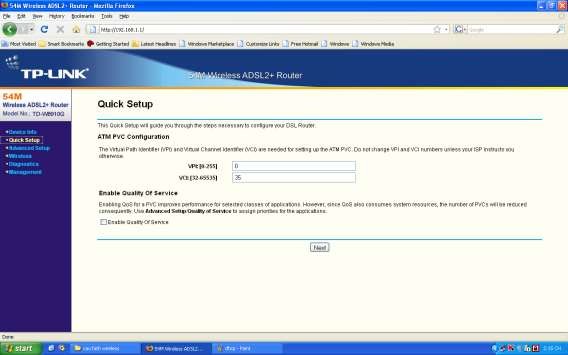
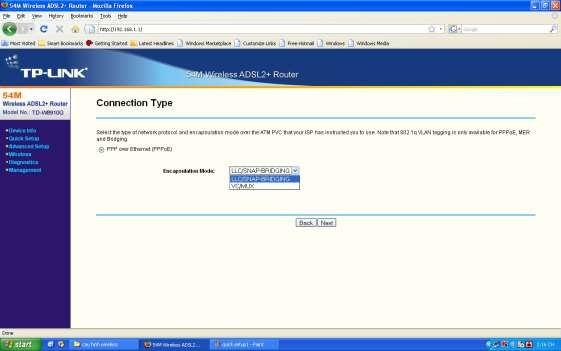
Step 3: Select connection type: we select PPPoE mode and select Encapsulation mode = LLC/SNAP-BRIDGING.
Click Next to continue
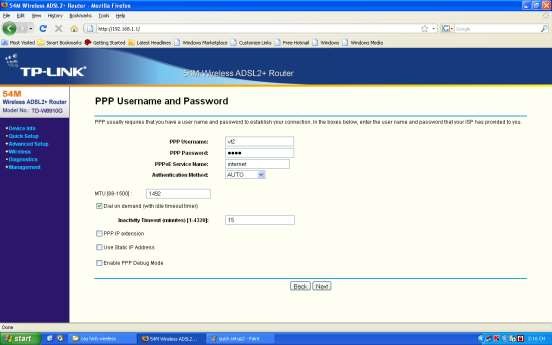
Step 4: Enter the PPP Username and Password provided by the service provider
Click Next to continue
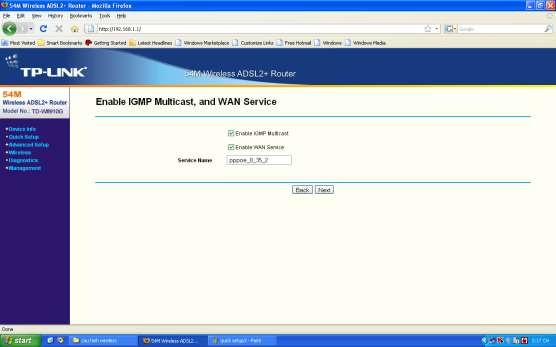
Step 5: Set Enable for IGMP Multicast and Wan Service Click Next to continue
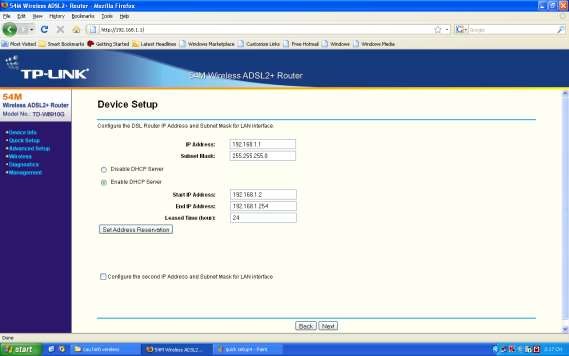
Step 6: Set the device's IP address (if needed) and Enable DHCP Server Click Next to continue
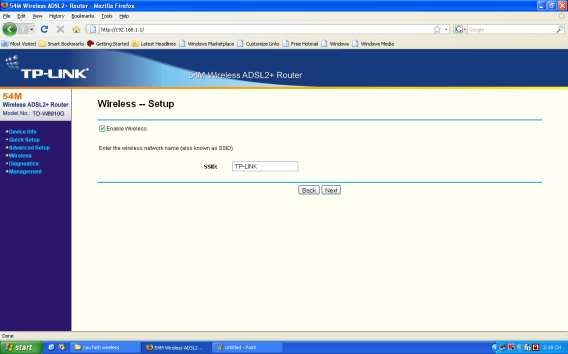
Step 7: Set up “Enable Wireless” and enter the SSID for the device (usually the name of your company or organization).
Click Next to continue
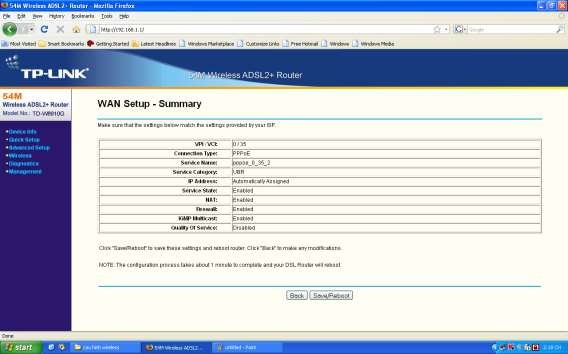
Step 8: The Wan Setup – Summary screen will appear.
Click the Save/Reboot button to save the settings and reboot the Router.
* Advanced configurations for Wifi Modem
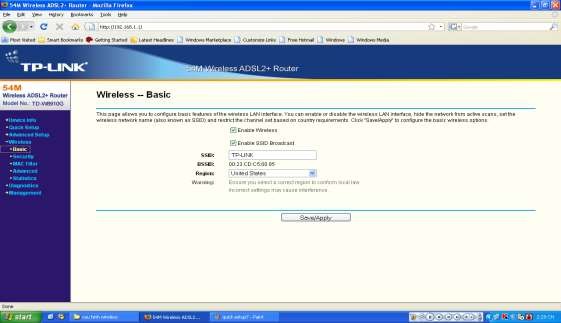
Step 1: Configure basic Wiriless parameters, such as Enable Wireless, Enable SSID Broadcast, set SSID
Step 2: Configure security for Wireless.
Enable authentication mode (Network Authentication = Open) Enable WEP encryption (WEP Encryption = Enable)
Set the number of encryption bits (Encryption Stringth = 64-bit)
Set the current network key number (Current Network Key = 1)
Set the Network Key (Network Key 1 = 0905868586) (If this textbox is empty, the Wifi network will not be secure)
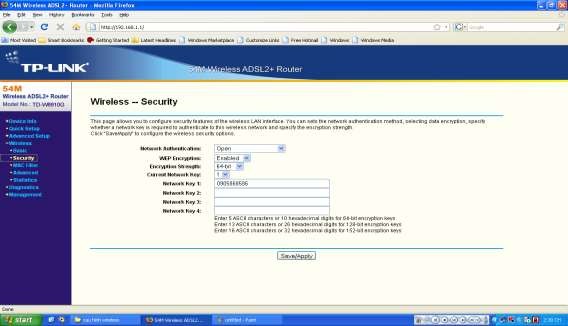
Step 3: Configure MAC Address filtering of computers in the network. Disabled: turn off Mac address filtering
Allow: enable Mac address filtering, and allow computers with Mac Address in the table to access
Deny: enable Mac address filtering, and do not allow computers with Mac Address in the table to access
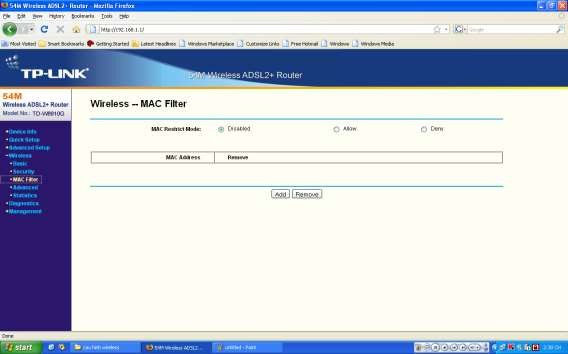
Step 4: Configure Wireless Advanced
Mode = 54Mbps(802.11g), other values are left as default
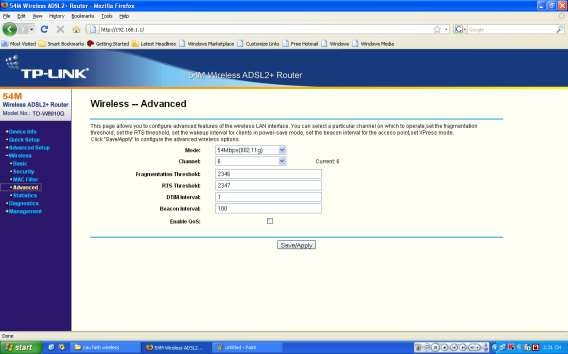
* View device information (Device Info)
Step 1: Device Info: view information about: Firmware Version Hardware Version Lan IP Address Primary DNS Server Secondary DNS Server
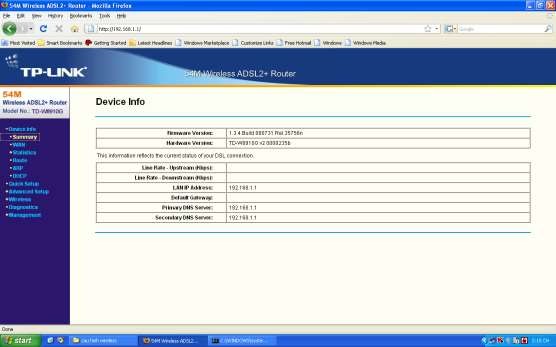
Step 2: Wan Info: information about the configuration settings of the Wireless network