
- Status selection list:
Font: Microsoft Sans Serif, Bold, 9
Font color: Black
The data source is taken from a list of filtered conditions from the tblQuanLy table, these conditions are the only ones displayed.
The data displayed is the status name.
Maybe you are interested!
-
 Practice database programming with VB.net - 39
 -
 Practice database programming with VB.net - 17
 -
 Programming Techniques Practice - 1
 -
 Programming Techniques Practice - 38
 -
 Database Programming - Hanoi Industrial Vocational College - 22
- Search command button
Font: Microsoft Sans Serif, Bold, 9
Font color: Black
Hotkey is: T
When clicking on the search button, the program will base on the search conditions to provide search results for units including information: Unit name, Asset name, quantity, date of issue and display on the DataGridView below.
- Finish command button:
Font: Microsoft Sans Serif, Bold, 9
Font color: Black
Hotkey is: K
When clicking the command button, the user is asked if they want to end the search. If they choose Yes, the search form will be closed. If they choose No, the form will be returned.
board:
Exercise 3. Given the data base
The management point named QLDIEM .MDF includes the following :
tblStudent(SV Code, Name, Date of Birth, Place of Birth, Gender, Address, Faculty, Class)
tblKhoa(Makhoa, Khoa name)
tblMonHoc(Mamon, Tenmon, Sohocphan, Giaovien) tblDiem(Mamon, MaSV, Diem, HocKy)
Job 1 : Design a form to search for subject information
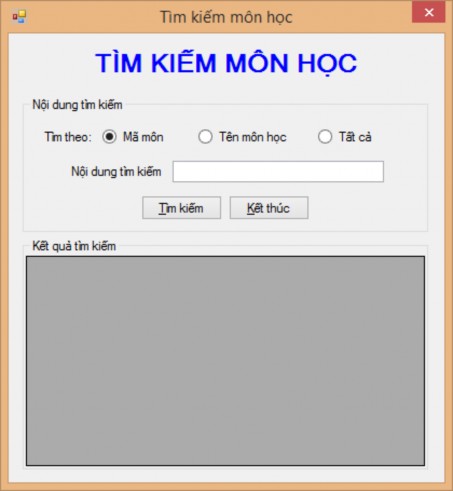
Figure 71. Subject search form
Request:
- Form type: FixedSingle
- The form's minimize and maximize buttons are hidden
- The form appears in the middle of the screen
- Subject Search Label:
Font: Microsoft Sans Serif, Bold, 18
Center the search form screen horizontally
Font color: Blue
- Subject Code and Subject Name labels
- Search command button
Font: Microsoft Sans Serif, Bold, 9
Font color: Black
Hotkey is: T
When clicking on the search button, the program will base on the search conditions to provide search results for subjects including information: Subject code, Subject name, Number of credits and display on the DataGridView below.
- Finish command button:
Font: Microsoft Sans Serif, Bold, 9
Font color: Black
Hotkey is: K
When clicking the command button, the user is asked if they want to end the search. If they choose Yes, the search form will be closed. If they choose No, the form will be returned.
Job 2 : Design a form to search for information about the department.
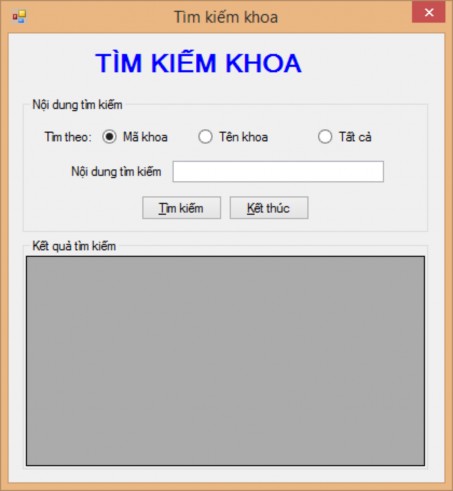
Figure 72. Faculty information search form
Request:
- Form type: FixedSingle
- The form's minimize and maximize buttons are hidden
- The form appears in the middle of the screen
- Faculty Search Label:
Font: Microsoft Sans Serif, Bold, 18
Center the search form screen horizontally
Font color: Blue
- Labels of Department Code, Department Name
- Search command button
Font: Microsoft Sans Serif, Bold, 9
Font color: Black
Hotkey is: T
When clicking on the search button, the program will base on the search conditions to provide search results for departments including information: Department code, Department name and display on the DataGridView below.
- Finish command button:
Font: Microsoft Sans Serif, Bold, 9
Font color: Black
Hotkey is: K
When clicking the command button, the user is asked if they want to end the search. If they choose Yes, the search form will be closed. If they choose No, the form will be returned.
Task 3: Design a student information search form according to the following template:
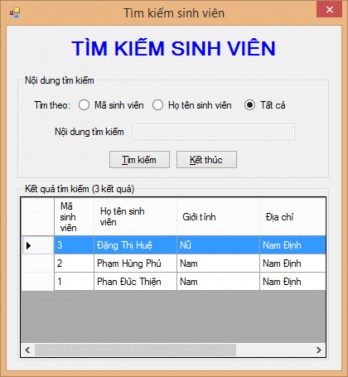
Figure 73. Student search form
Request:
- Form type: FixedSingle
- The form's minimize and maximize buttons are hidden
- The form appears in the middle of the screen
- Student Search Label:
Font: Microsoft Sans Serif, Bold, 18
Center the search form screen horizontally
Font color: Blue
- Student Code, Student Name labels
Font: Microsoft Sans Serif, Bold, 9
Font color: Black
- Search command button
Font: Microsoft Sans Serif, Bold, 9
Font color: Black
Hotkey is: T
When clicking on the search button, the program will base on the search conditions to provide search results for students including information: Student code, Student full name, Date of birth, Place of birth, Gender, Address and display on the DataGridView below.
- Finish command button:
Font: Microsoft Sans Serif, Bold, 9
Font color: Black
Hotkey is: K
When clicking the command button, the user is asked if they want to end the search. If they choose Yes, the search form will be closed. If they choose No, the form will be returned.
Task 3 : Design a form to search for student scores during the semester
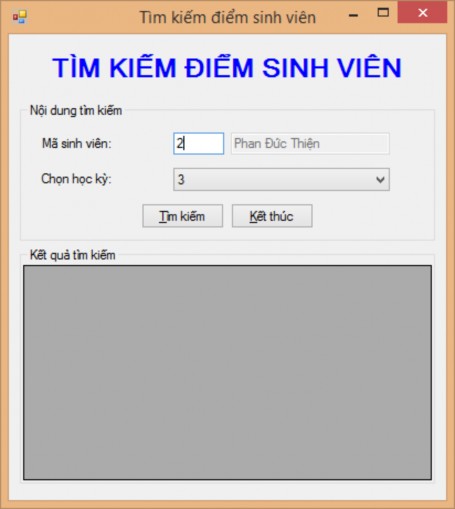
Figure 74. Student score search form by semester
Request:
- Form type: FixedSingle
- The form's minimize and maximize buttons are hidden
- The form appears in the middle of the screen
- Label Search student scores:
Font: Microsoft Sans Serif, Bold, 18
Center the search form screen horizontally
Font color: Blue
- Student Code, Select Semester labels
Font: Microsoft Sans Serif, Bold, 9
Font color: Black
- List of semesters:
Font: Microsoft Sans Serif, Bold, 9
Font color: Black
Semester value from 1 to 9.
- Search command button
Font: Microsoft Sans Serif, Bold, 9
Font color: Black
Hotkey is: T
When clicking on the search button, the program will base on the search conditions to provide search results for units including information: Subject name, Number of credits, Score, Teacher and display on the DataGridView below.
- Finish command button:
Font: Microsoft Sans Serif, Bold, 9
Font color: Black
Hotkey is: K
When clicking the command button, the user is asked if they want to end the search. If they choose Yes, the search form will be closed. If they choose No, the form will be returned.
Task 4: Design a form to search for students' scores by subject in the semester