
4. Implementation results
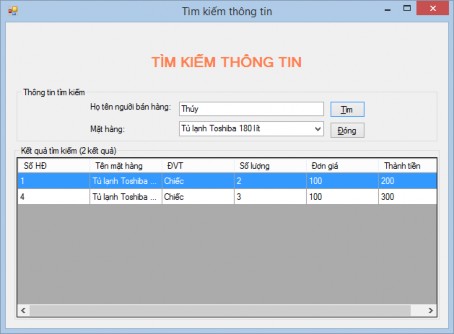
Figure 62. Result of executing the form to search for the number of times a customer has purchased an item
Maybe you are interested!
-

 Practice database programming with VB.net - 39
 -
 Practice database programming with VB.net - 19
 -
 Programming Techniques Practice - 1
 -
 Programming Techniques Practice - 38
 -
 Database Programming - Hanoi Industrial Vocational College - 22
2.2.3. Practice exercises
Exercise 1. To manage teaching assignments in a semester for teachers of the IT department, the department has a QLYGD.MDF database which has the following tables:
tblGiaoVien(MaGV, HoTen, BoMon, DMGD) tblMonHoc(Mamon, Tenmon, SoTinChi) tblPhanCong(MaGV, MaMon, LHP, SSO)
Continuing with exercise number 1 done in the practice exercise section of lesson 1, do the following tasks:
Job 1:
Design a form to search for information about teachers and display the results on the form according to the following template:
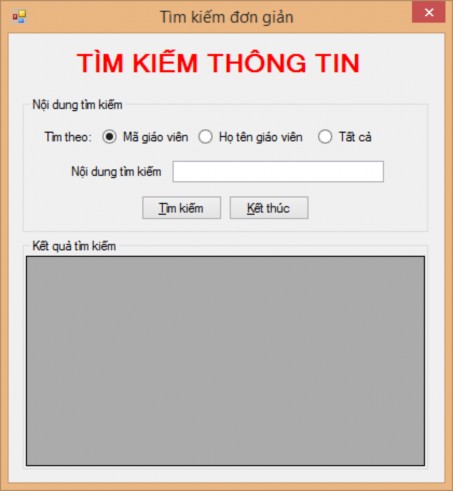
Figure 63. Teacher information search form
Request:
- Form type: FixedSingle
- The form's minimize and maximize buttons are hidden
- The form appears in the middle of the screen
- Information Search Label:
Font: Microsoft Sans Serif, Bold, 18
Center the search form horizontally Font color: Red
- Tags Search by, Search content Font: Microsoft Sans Serif, Bold, 9
Font color: Black
- Radio buttons Teacher code, teacher name, all Font: Microsoft Sans Serif, Bold, 9
Center vertically Text color: Black
- Search command button
Font: Microsoft Sans Serif, Bold, 9
Font color: Black
Hotkey is: T
When clicking on the search command button, the program will base on the selected values in the radio buttons in the Search by section and the search conditions in the search content box, the program will give search results for teachers including the following information: Teacher code, Teacher's full name, Department, Teaching standards and display them on the DataGridView below.
Search by teacher code: Requires exact search by teacher code entered from keyboard into search content textbox.
Search by teacher name: Request to search approximately by teacher name entered from keyboard into search textbox (for example: entering "an" in search textbox will return results Nguyen Van An, Tran Van Anh, Mai The Cang, ...)
Search by all: Will display all teachers. The results list is sorted in dictionary order.
- Finish command button:
Font: Microsoft Sans Serif, Bold, 9
Font color: Black
Hotkey is: K
When clicking the command button, the user is asked if they want to end the search. If they choose Yes, the search form will be closed. If they choose No, the form will be returned.
Task 2 : Design a form to search for information about the subject and display the results on the form according to the following template:
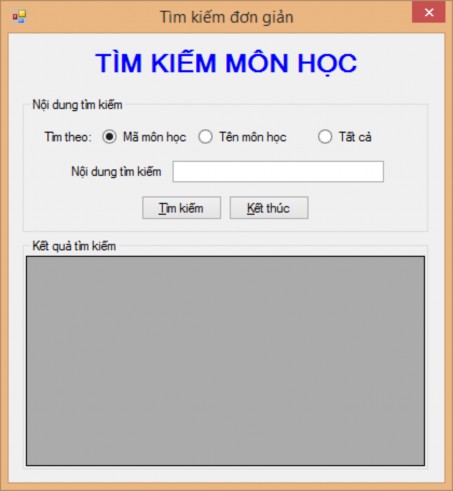
Figure 64. Subject search form
Request:
- Form type: FixedSingle
- The form's minimize and maximize buttons are hidden
- The form appears in the middle of the screen
- Subject Search Label:
Font: Microsoft Sans Serif, Bold, 18
Center the search form screen horizontally
Font color: Blue
- Search by, Search Content tags
Font: Microsoft Sans Serif, Bold, 9
Font color: Black
- Radio buttons Teacher code, teacher name, all
Font: Microsoft Sans Serif, Bold, 9
Center vertically
Font color: Black
- Search command button
Font: Microsoft Sans Serif, Bold, 9
Font color: Black
Hotkey is: T
When clicking on the search button, the program will base on the search conditions to provide search results for subjects including information: Subject code, Subject name, Number of credits and display on the DataGridView below.
Search by subject code: Requires exact search by subject code entered from keyboard into search content textbox.
Search by subject name: Request to search approximately by subject name entered from keyboard into search content textbox (for example: entering "base" in search content box will return results Database Management System, Distributed Database, SQL Server Database, ...)
Search by all: Will display all subjects. The results list is sorted in dictionary order.
- Finish command button:
Font: Microsoft Sans Serif, Bold, 9
Font color: Black
Hotkey is: K
When clicking the command button, the user is asked if they want to end the search. If they choose Yes, the search form will be closed. If they choose No, the form will be returned.
Job 3. Design a teacher assignment search form according to the following template
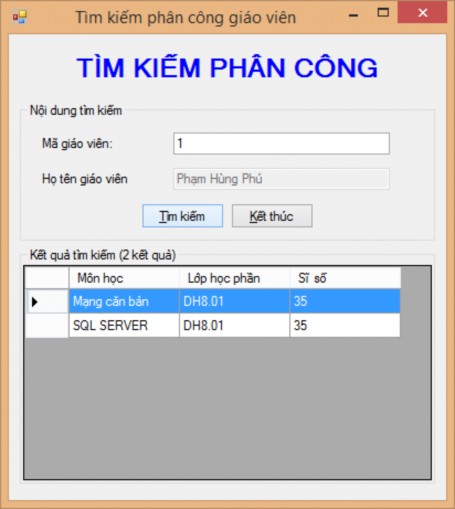
Figure 65. Search for teacher assignments
Request:
- Form type: FixedSingle
- The form's minimize and maximize buttons are hidden
- The form appears in the middle of the screen
- Assignment Search Label:
Font: Microsoft Sans Serif, Bold, 18
Center the search form screen horizontally
Font color: Blue
- Teacher Code, Teacher Name labels
- Search command button
Font: Microsoft Sans Serif, Bold, 9
Font color: Black
Hotkey is: T
When clicking on the search button, the program will based on the search conditions, the program will give search results for subjects including information: Subject, class, number of students and display on the DataGridView below.
- Finish command button:
Font: Microsoft Sans Serif, Bold, 9
Font color: Black
Hotkey is: K
When clicking the command button, the user is asked if they want to end the search. If they choose Yes, the search form will be closed. If they choose No, the form will be returned.
Task 4. Design a form to search for teacher assignments by subject according to the following template.
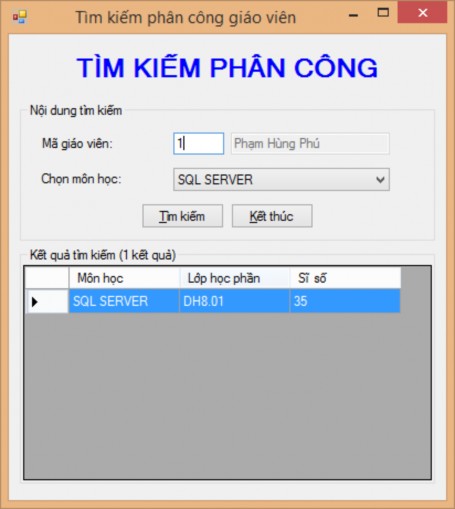
Figure 66. Search for teacher assignments by subject
Request:
- Form type: FixedSingle
- The form's minimize and maximize buttons are hidden
- The form appears in the middle of the screen
- Assignment Search Label:
Font: Microsoft Sans Serif, Bold, 18
Center the search form screen horizontally
Font color: Blue
- Teacher Code, Subject Selection labels