
Dim row As DataRow = dt.Rows(chiso)
Dim Traloi As String
traloi = MsgBox( "Delete current record ?" , MsgBoxStyle.OkCancel)
If traloi = 1 Then row.Delete()
Maybe you are interested!
-
 Database Programming - Hanoi Industrial Vocational College - 1
 -
 Database Programming - Hanoi Industrial Vocational College - 14
 -
 Database - Hanoi Industrial College - 2
 -
 Practice database programming with VB.net - 39
 -
 SQL Database Administration - Hanoi University of Business and Technology - 14
End If
da1.Update(dst, "sanpham" ) dst.AcceptChanges()
When testing the program, you should only delete newly added records to avoid deleting all records in the database and violating the constraint between the product table and the sales table. Or you can temporarily disable the two update commands to avoid deleting on the database.
g. To check if the primary key contains the passed value
<DataTable>.Rows.Contains(<value>)
The method checks the primary key column for any row containing <value> and returns True if found, otherwise returns False
<DataTable>.Rows.Contains(<array>)
The method checks the primary key columns for any rows containing the <array of values> and returns True if found, otherwise returns False. The order of the values passed in must follow the order of the key columns on the DataTable.
h. Find DataRow whose primary key contains the passed value
<DataTable>.Rows.Find(<value>)
The method returns the row containing the <value> on the primary key column. If not found, returns Nothing
<DataTable>.Rows.Find(<array>)
The method returns a DataRow containing a tuple <array of values> on the primary key columns.
The order of the values passed in must follow the order of the key columns on the DataTable.
Example 5.13 - illustrates creating operations with the Rows collection:
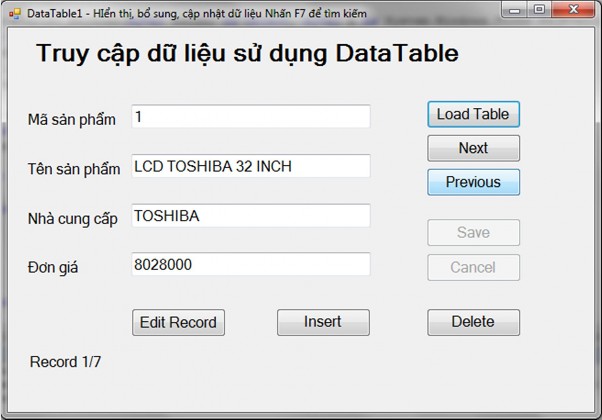
The Load Table button will load the records of the product table into a dataTable. The Next and Previous buttons will move to the next or previous records. When the Insert button is pressed, the textboxes will be cleared to allow new data to be entered. Press Save to save the entered information.
The Delete button allows deleting the current record (with a dialog box asking the user to confirm the deletion). The Edit button allows editing the information of the current record through the corresponding textboxes.
After loading data using the Load Table button, if pressing F7, the user can search for information about a product by entering the product code they are looking for.
Declaration of common variables:
Dim da1 As New SqlClient.SqlDataAdapter( "select * from product" , Results)
Dim dst As New DataSet Dim dt1 As New DataTable
'declare current record index and total number of records Dim chiso, tongso As Int32
'declare Insert or Edit or Delete mode
Dim Chedo As String
To display the data of the current record, the program builds a procedure named Filltextbox as follows:
Private Sub FillTextBox()
txtmasp.Text = dt1.Rows(chiso)( "masp" ).ToString txttensp.Text = dt1.Rows(chiso)( "tensp" ).ToString txtnhacc.Text = dt1.Rows(chiso)( "nhacc" ). ToString txtdongia.Text = dt1.Rows(chiso)( "dongia" ).ToString Label6.Text = "Record " & chiso + 1 & "/" & tongso
End Sub
Code for the Click event of the Load Table button:
dst.Clear()
'create structure for dst products table to get primary key for searching by product code
da1.FillSchema (dst, SchemaType.Mapped, "sanpham" da1.Fill(dst, "sanpham" )
dt1 = dst.Tables( "sanpham" ) tongso = dt1.Rows.Count FillTextBox() btedit.Enabled = True btinsert.Enabled = True btdelete.Enabled = True
Dim bo_lenh As New SqlClient.SqlCommandBuilder(da1)
Click event of Next and Previous button
Private Sub btnext_Click...
If chiso < tongso - 1 Then chiso += 1 Else chiso = 0 FillTextBox()
End Sub
Private Sub btpr_Click...
If chiso > 0 Then chiso -= 1 FillTextBox()
End Sub
Code for Click event of Insert, Delete, Save buttons:
Private Sub btinsert_Click.... txtmasp.Clear() txttensp.Clear() txtnhacc.Clear() txtdongia.Clear()
txtmasp.Focus()
chedo = "Insert" btsave.Enabled = True btcancel.Enabled = True
End Sub
Private Sub btdelete_Click... chedo = "Delete" btsave.Enabled = True
Dim row As DataRow = dt1.Rows(chiso)
Dim Traloi As String
traloi = MsgBox( "Delete current record ?" , _ MsgBoxStyle.OkCancel)
If response = 1 Then
If chiso > 0 Then chiso -= 1 Else chiso = tongso - 1 tongso -= 1
FillTextBox() row.Delete()
End If End Sub
Private Sub btedit_Click... btsave.Enabled = True chedo = "Edit"
Dim row As DataRow = dt1.Rows(chiso) row.BeginEdit()
row( "masp" ) = txtmasp.Text row( "tensp" ) = txttensp.Text row( "nhacc" ) = txtnhacc.Text row( "dongia" ) = CSng (txtdongia.Text)
row.EndEdit() End Sub
Private Sub btsave_Click... If chedo = "Insert" Then
If txtmasp.Text = "" And txttensp.Text = "" And _ txtnhacc.Text = "" And txtdongia.Text = "" Then
MsgBox( "Must enter full information" ) Else
Label6.Text = "Saving ..."
Dim row As DataRow = dt1.NewRow row( "masp" ) = txtmasp.Text row( "tensp" ) = txttensp.Text row( "nhacc" ) = txtnhacc.Text row( "dongia" ) = CSng (txtdongia.Text ) dt1.Rows.Add(row)
End If total += 1
chiso = tongso - 1 da1.Update(dst, "sanpham" ) dst.AcceptChanges()
Label6.Text = "Record " & tongso & "/" & tongso End If
If chedo = "Delete" Then tongso -= 1 da1.Update(dst, "sanpham" ) dst.AcceptChanges()
End If
If chedo = "Edit" Then da1.Update(dst, "sanpham" ) dst.AcceptChanges()
End If End Sub
Handling searches. To enable keyboard events on the form, we must set the form's KeyPreview property to True.
Add the following code to the form's KeyDown procedure:
Dim msp As Int16
If e.KeyCode = Keys.F7 Then
If dt1.DataSet Is Nothing Then MsgBox( "No data loaded" )
Else
msp = InputBox( "Enter the product code you want to find" )
Dim dongsp As DataRow dongsp = dt1.Rows.Find(msp) If dongsp Is Nothing Then
MsgBox( "Not found" )
Else
txtmasp.Text = dongsp( "masp" ) txttensp.Text = dongsp( "tensp" ) txtnhacc.Text = dongsp( "nhacc" ) txtdongia.Text = dongsp( "dongia" )
End If End If
End If
Example 5.14 - Using Binding Navigator to update product table data
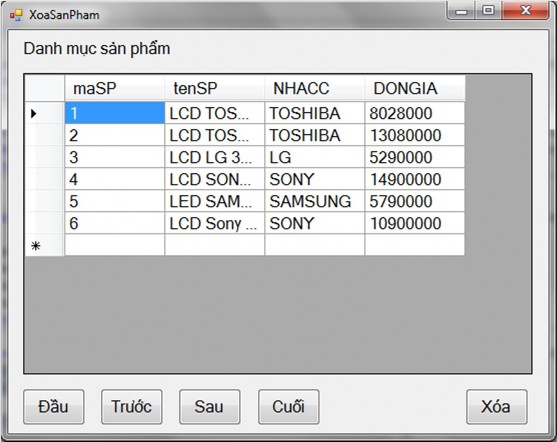
- Step 1: Design a form including a label and a datagridview as shown below:
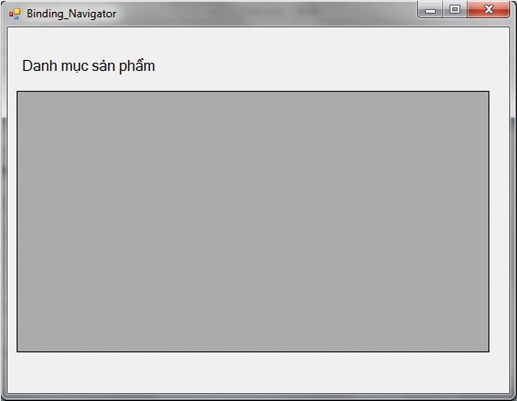
- Step 2: Connect to De1 database using View/Server Explorer
- Step 3: Add the SQLDataAdapter control to the form and enter the following command for the Select Command screen:
Select * from product
- Step 4: Create a new dataset using the Generated DataSet function. Name the Dataset dst11.
- Step 5: Add the Binding Source control to the form. Declare its DataSource property as dst11 and its DataMember property as sanpham.
- Step 6: Drag the Binding Navigator control into the form (above the product category label). Declare its Binding Source property as BindingSource1 (the name of the BindingSource).
- Step 7: Declare the grid's DataSource property as BindingSource1.
- Step 7: Add the following code to the Form's Load procedure (this code dumps data from SQLDataAdapter1 into dst11) and automatically generates other commands for SQLDataAdapter1
Dst111.Clear() SqlDataAdapter1.Fill(Dst111, "sanpham" )
Dim bo_lenh As New SqlClient.SqlCommandBuilder(SqlDataAdapter1)
Updates to the dataset and dataAdapter will be thrown on the FormClosed event:
SqlDataAdapter1.Update(Dst111, "sanpham" ) Dst111.AcceptChanges()
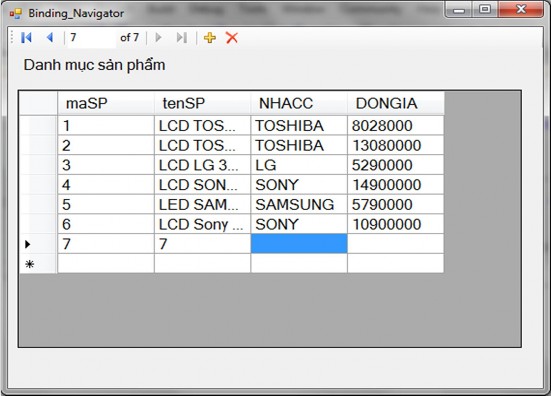
When running, the form will be displayed as shown below. We can use the Add New and Delete tools of BindongNavigator to add or delete records; use the Move First, Move Previous, Move Next and Move Last buttons to move the record cursor.
5.8 Create reports
5.8.1 Crystal Report
Crystal Report is a professional report design software integrated in all versions of Visual Studio. Microsoft's Studio .NET version is integrated with Crystal Report 8.5.
Crystal Report itself is a standalone reporting software with a wide range of reporting and service design features. Users can connect to various data sources using ODBC Drivers.
Reports can also be saved as standalone .rpt files, with or without data. The .rpt files can then be transferred to other users and opened with Crystal Report or can be integrated with applications written in Visual Basic, Visual C++.
In terms of report design, Crystal Report provides full data formatting functions and grouping, calculation, sub-report functions and even the ability to program with formulas based on formula fields. In addition to using formula fields, users can also build their own function libraries and put them into Crystal Report through DLLs. In addition to the ability to design regular reports, Crystal Report also provides chart design functions based on data sources taken from the database.
In terms of using reports, Crystal Report's display tool allows users to interact very flexibly. The displayed report can be filtered to the necessary data or view a part of the report by using the tree-like data display structure. Sections in the report can also be expanded or collapsed to display or hide unnecessary data. Once the report has been built, users can also Export to other file formats such as Word, Excel, HTML, etc.
By integrating Crystal Report 8.5, Visual Studio .NET provides users with an effective report building tool, saving a lot of time compared to having to use printing objects to generate reports. We can use Report Expert to create reports based on wizards and pre-defined templates or design detailed reports manually. This course only guides how to create reports using wizards.
5.8.2 Instructions for using the report wizard.
Design a data filter form according to the following template.