
Search function for articles by: Post date. From date – to date, Or from date, month – to date, month. Or from date, month, year – to date, month, year
Article search function through: Article content. New article creation function.
Maybe you are interested!
-
 Teaching Blues to students of the electronic keyboard class at Hai Phong College of Culture, Arts and Tourism - 1
 -
 Learn about Team building activities for tourists who are workers of Vietravel tourism company, Hai Phong branch - 1
 -
 Current status, potential and solutions for developing team building tourism in Hai Phong - 13
 -
 Strengthening Tourism Promotion and Advertising; Focusing on Investing in Building Brands and Typical Tourism Products of Hai Phong:
 -
 Asian Cake Making - Culinary Arts - Hai Phong College of Tourism - 2

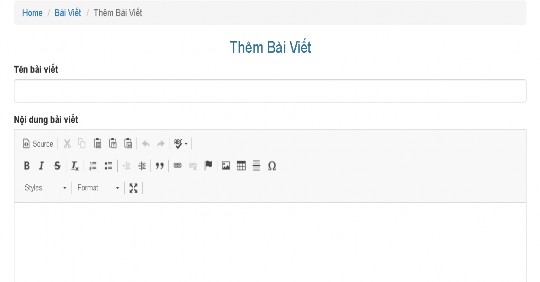
Figure 22 New article creation interface In the new article creation interface: the title is Add article.
Post Name: Post Name is a required field. If the user does not fill it out, the status line 'Post Name Cannot be left blank!' will be displayed.
Article content row: This is where article content is saved, with editing tools.
text, including Cut, Copy, Paste, Paste from word, Undo, Redo, Spell Checker. Format font style Bold, Italic, Strikethrought. Insert or delete numbered list: Insert/remove numbered list, insert or delete bulleted list: Insert/remove bulleted list, Insert Link, Insert image, insert table, Style, Text title: Normal.
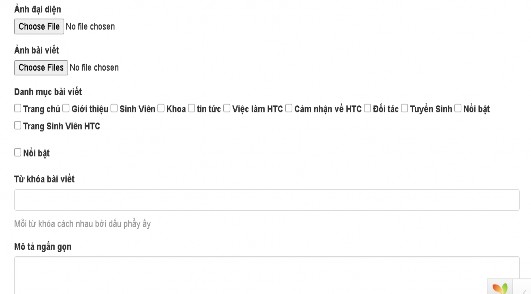
The avatar row will take the image to be selected, the user can only select one avatar, when the user does not select an avatar, the default image named no-image.jpg will be taken, when the user selects an image, the name of the selected image will be displayed.
Post image row: If the user selects multiple images, the number of selected images will be displayed.
Article Category Row: First, all categories in the Category table will be retrieved. Each article must belong to one or more categories. If the article is featured, select the two Featured functions in the Article Category. Users only need to select through the checkbox.
Article Keywords row: Users will enter keywords, there are suggestions on how to enter keywords (each keyword is separated by a comma). There is a function to delete keywords when the user wants to delete them.
In the Short Description line: Will describe information about the article. And the Save function is used to save the created article.
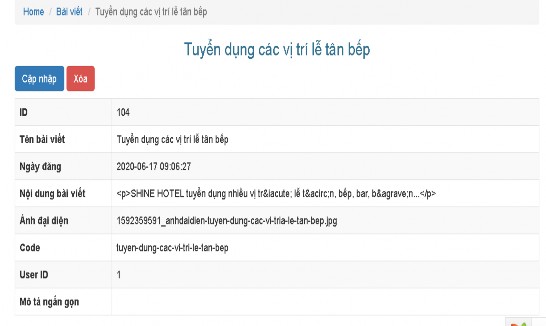
Figure 23 Interface for viewing article details When viewing article details: Including article title as the name of the article.
View details: Post ID, Post name, Post date, Post content, avatar, Code, User ID, Short description.
And the function to update articles and delete articles being viewed.
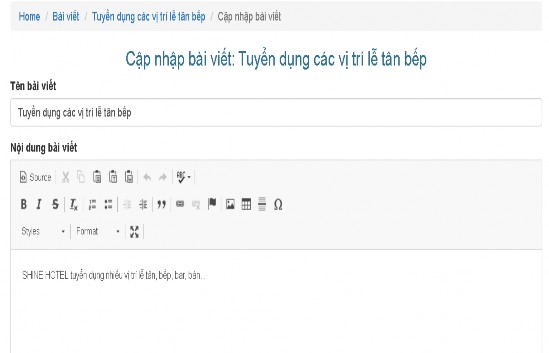
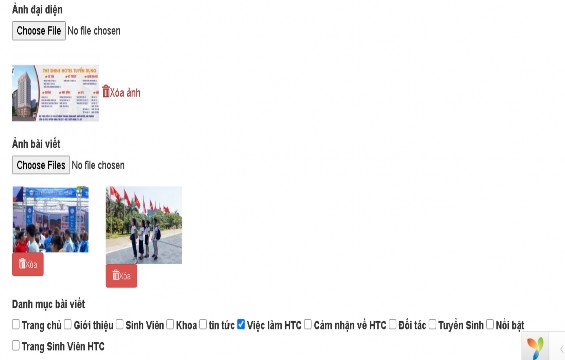
Figure 24 Article editing interface
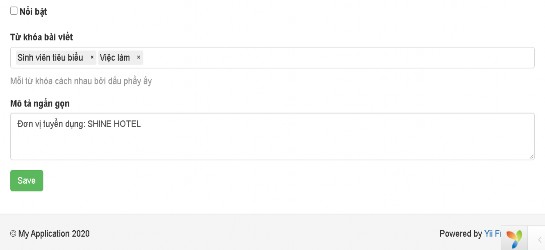
Figure 25 Article editing interface
When editing an article: Title Update article is the name of the article to be edited. Article name row: Get the name of the article to be edited.
Article content row: Get the article content to edit.
Avatar row: Get the avatar image to edit, and add the function to delete the image. You can add or not add an avatar, if the avatar section is empty, it will take the default image named no-image.jpg.
Post image row: Get all post images of the post being edited, and add the function to delete images. Can add post images or not add post images, post images can be present or absent.
Article category row: Will retrieve the selected categories, can add new categories, can cancel selected categories, but the article must belong to at least one category. If the article is a featured article, will select two featured functions belonging to the article category.
Article keywords row: Will get a list of article keywords, can add or remove article keywords.
In the short description row: The short description content that needs to be edited will be retrieved. The Save function is used to save the article.
In the function to delete an article, when the user chooses to delete, there will be an interface asking if they are sure to delete the article.
Create post edit function
public function actionUpdate($id)
{
$model = $this->findModel($id);
$model ->post_category = ArrayHelper:: map (
DanhMucBaiViet:: findAll (['bai_viet_id' => $id]),
'category_id','category_id'
);
// keyword -< post id >- post
// need to get the name from the selected department based on the id of the article being edited
$tukhoa_baiviet = BaiVietId:: findAll (['noi_dung_bai_viet_id' => $id]);
$model->article_keywords= [];
foreach ($tukhoa_baiviet as $item){
$tukhoa = TuKhoa:: findOne ($item->tu_khoa_id); // each item is a product keyword
$model ->tu_khoa_bai_viet[] = $tukhoa->name;
}
$model ->article_keywords = implode (',', $model->article_keywords);
if ($model->load(Yii:: $app ->request->post()) && $model->save()) {
return $this->redirect(['view', 'id' => $model->id]);
}
return $this->render('update', [
'model' => $model,
]);
}
Create a function to delete the avatar
public function actionXoaAnhDaiDien($idbv){
$bai_viet = BaiViet:: findOne ($idbv); // get information of the post to delete
if($post->photo_picture !='no-image.jpg'){
$path = dirname ( dirname ( __DIR )).'/images/'.$bai_viet->anh_dai_dien;
if( is_file ($path)){
unlink ($path);
BaiViet:: updateAll (['anh_dai_dien' => 'no-image.jpg'], ['id' => $idbv]);
}
}
else{
Yii:: $app ->session->setFlash('thongbao', "<div class='alert alert-danger'>Unable todelete default image of this product!</div>");
}
$this->redirect(yiihelpersUrl:: toRoute (['bai-viet/update', 'id' => $idbv]));
}
Create a function to delete post images
public function actionXoaAnhBaiViet($idhinhanh){
$anh_baiviet = AnhBaiViet:: findOne ($idhinhanh);
$post_image id = $post_image->post_image_id;
if($post->delete())
return $this->redirect(yiihelpersUrl:: toRoute (['bai-viet/update','id'=>$id_anhbaiviet]));
else
throw new HttpException(500, Html:: errorSummary ($anh_baiviet));
}