
2.4.3. DENY statement
Effect: The DENY command is used to prevent user rights. Syntax:
DENY
{ALL | statement[,...]} ON Table_Name
TO Security_Account [,...]
Example: Prevent user JOHN from SELECT permissions to the Employee table in the AdventureWorks database
DENY SELECT
ON Employee FROM JOHN
2.5. Execute T-SQL
SQL Server 2008 provides several ways to execute Transact-SQL statements. Statements can be executed as single statements or as a batch.
- Single statements: Single statement processing is the common way that SQL Server 2008 executes statements.
Example 1:
SELECT * FROM Candidates
- Batch processing:
+ A batch is a collection of one or more Transact-SQL statements terminated by the Go keyword and sent at the same time from an application to SQL Server for execution.
+ These statements are compiled into an execution unit and are called “execution plan”.
+ The statements in the “execution plan” are executed at the same time.

- Scripts: SQL statements can be executed in a script by saving it in a file. The file extension is usually *.sql . The file will be read when requested for execution.
Example 2:
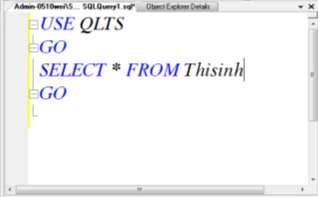
Figure 2.4. Creating a script
Chapter 3
DATABASE MANAGEMENT
3.1. Database
3.1.1. Database systems
SQL Server is organized as a relational database. SQL Server 2008 supports three types of databases: system databases, user-defined databases, and template databases.
1) System Databases: Created by SQL Server. These databases are used to store information about SQL Server 2008. Furthermore, these databases are also used to manage user databases. The system databases supported by SQL Server 2008 are master, model, msdb, tempdb and are located in the System Database pane.
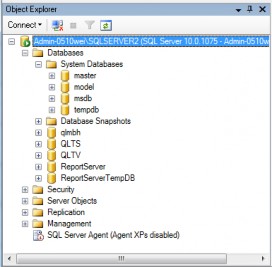
Figure 3.1. System database
TT
Database | Describe | |
1 | master | This database stores all the information at the system level. system of a SQL Server clone. |
2 | msdb | This database is used by SQL Server Agent to Reminders of scheduled tasks and other tasks. |
3 | model | This database is used as a template database for all databases created in a particular replication. of SQL Server 2008. |
4 | Tempdb | This database stores temporary objects and result sets. intermediary |
Maybe you are interested!
-
 Practice database programming with VB.net - 39
 -
 User Equipment
 -
 SQL Database Administration - Hanoi University of Business and Technology - 14
 -
 Database Content Structure In GIS Environment
 -
 Overview of Water Resources Database Development
Users are not allowed to directly update information in system database objects, such as system tables, system stored procedures, and catalog views. But users can use administrative tools that allow them to administer the system and manage all users and database objects. These are:
- SQL Server Management Studio
- SQL Server Management Objects (SMO): Application programming interface to SQL Server management objects
- Transact-SQL scripts and stored procedures: use system stored procedures and Transact-SQL data query language statements

Figure 3.2. Changing system data
Database applications can determine catalog and system information using the following approaches:
- System catalog view.
- SQL Server management objects.
- List functions, methods, properties, or attributes of the database application programming interface.
- Stored procedures and functions.
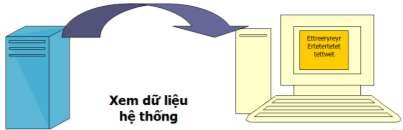
Figure 3.3. View system data
2) User-defined databases: SQL Server 2008 users can create user-defined databases. The purpose of these databases is to store user data. The size of the database can be expanded or contracted. When a user database is no longer needed, it can be dropped. Figure 3.4 below shows the QLTS (Enrollment Management) database created by the user.
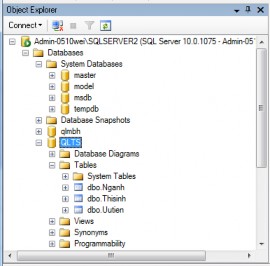
Figure 3.4. User-created database
3) Sample Databases: SQL Server provides sample databases for users to work with SQL Server 2008. One sample database introduced in SQL Server 2008 is AdventureWorks.
3.1.2. Create database
There are three main ways to create a database in SQL Server: using the Management Studio (MS) tool; SQL statements; using Visual C#, VB, or C++ with SQL Server Management Object (SMO). By default, a newly created database will have two files: A data storage file with the extension .mdf, a file that records information related to data manipulation with the extension .log. In the case of a database used for a certain business purpose, it will have the ability to contain large capacity. Therefore, it is possible to create multiple data files instead of just one .mdf file. By creating multiple secondary files with the extension .ndf for a database, we can move or copy files more easily than with a single file.
1) Create database using MS tools Main steps
Step 1: Select Database/Right click/Select New Database.
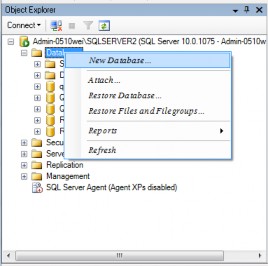
Figure 3.5. Creating a database
Step 2: Enter the database name in the Database Name field.
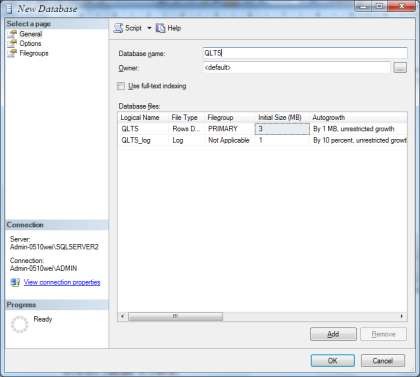
Figure 3.6. Enter database name
Step 3: Select the account by selecting the button  in the Owner section and entering the account name in the Enter the Object names to select section. Select the Check Names button to check if this account exists. Then select the OK button.
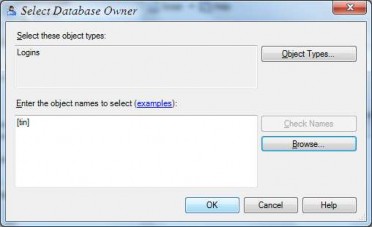
Figure 3.7. Select account
Owner is the owner of the database. We should choose an account to be the owner of the database instead of using the default. <Default> is the alias of the account we use to log in to SQL Server.
Step 4: Change the location to save the .mdf and .log files. Select the button  in the Path field.
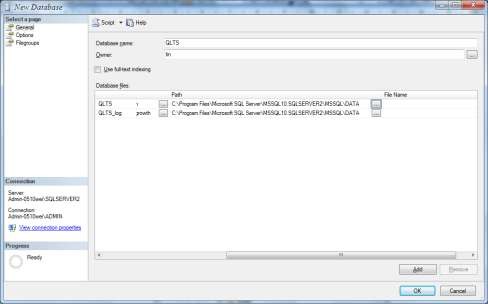
Figure 3.8. Changing the file save location
Step 5: Select the folder containing the file: Select the path/OK. The default location for storing the database file created by the user is in the folder “C:Program FilesMicrosoft SQL ServerMSSQL10.SQLSERVER2MSSQLDATA”.
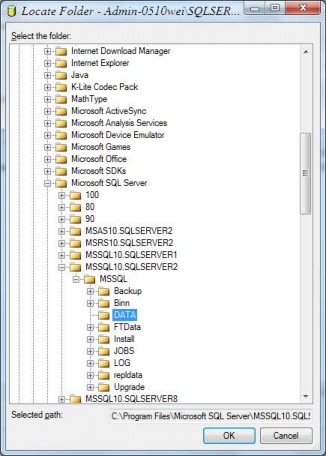
Figure 3.9. Select the folder containing the file
Step 6: Create secondary file. Select Add button/enter name for secondary file.
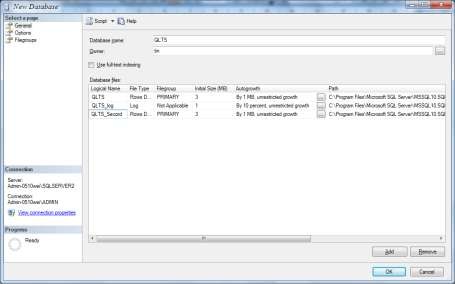
Figure 3.10. Enter secondary file name
Step 7: Declare the initial capacity for the database. Enter the capacity in the Initial Size/OK field.