
+ Revision: Version information, similar to the Stepping section.
+ Instructions: Instructions for the CPU to process.
+ Core Speed: CPU clock speed, this clock speed fluctuates frequently to save power.
+ Level 2: Cache parameters, the higher this parameter is, the less CPU will be stuck in data processing. Here is the Core i5 CPU, so the CPU has Level 3 memory, but normally it is only at Level 2... The larger the level number, along with the higher capacity, the faster the CPU runs.
+ Cores and Threads: Number of cores and threads of the CPU. This number is usually even and is often called: 2-core CPU, 4-core CPU, 6-core CPU...
Maybe you are interested!
-
 Computer Architecture Course - 10
 -
 Computer Architecture - 11
 -
 Computer Structure - Hanoi Industrial College - 15
 -
 The influence of Indian culture on Chinese Buddhist architecture and sculpture - 14
 -
 Basic Features of Authoring a Computer Program
b) Caches Tab: View information about Caches
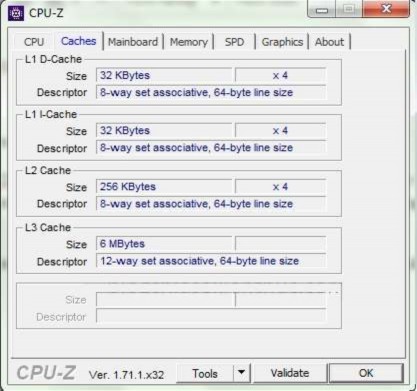
Figure 5. 33. Cache Information Displays detailed information about caches
c) Mainboard Tab: View information about the Mainboard
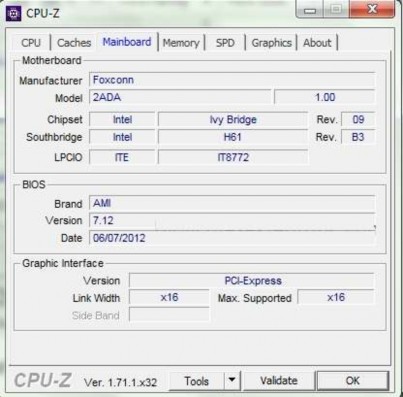
Figure 5. 34. Mainboard information
+ Manufacturer: Is the name of the Mainboard manufacturer (For example, there are manufacturers such as: Gigabyte, Asus, Intel,...)
+ Model: Is the model of the Mainboard. This information is very important in the process of searching for drivers. The next box (1.0) is the version information, the higher the better.
+ Chipset: Information about the Mainboard chipset (Example: G41, H61, H81,...).
+ BIOS: Displays information about the BIOS manufacturer, production date and BIOS version.
+ Graphic Interface: Information about the graphics card slot on the Mainboard. Link Width is the width of the bandwidth.
d) Memory Tab: View information about RAM
+ Type: Displays the type of RAM in use such as DDR, DDR2, DDR3…
+ Size: Total RAM capacity in use.
+ Channel: If it is displayed as Single, it means that 1 RAM stick is attached or the Mainboard does not support dual channel mode. If it is displayed as Dual, it means that the RAM is running in dual channel mode (faster speed). This also means that 2 or more RAM sticks are attached.
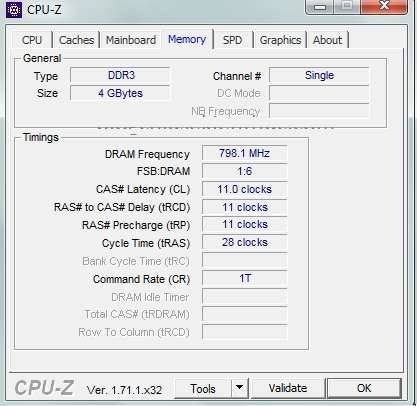
Figure 5.35. RAM information
e) SPD Tab: View detailed information about RAM
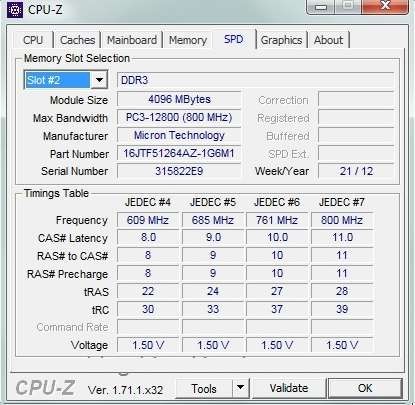
Figure 5. 36. RAM details
+ Slot #: Press the drop-down arrow to display the number of RAM slots. Normally, the computer will have 2 or 4 RAM slots. DDR3: is the type of RAM
+ Module Size: RAM capacity in the slot being viewed. Unit is MB (1GB = 1024MB). In this example, a 4GB ram stick is being used.
+ Max Bandwidth: (Maximum bandwidth speed) This is actually the RAM BUS parameter. Multiply the clock speed in parentheses by 2, which will give you the current RAM BUS speed.
at. For example: 800Mhz x 2 = 1600 -> RAM BUS is 1600
+ Manufacturer: Manufacturer name.
f) Graphics Tab: View information about the Graphics Card
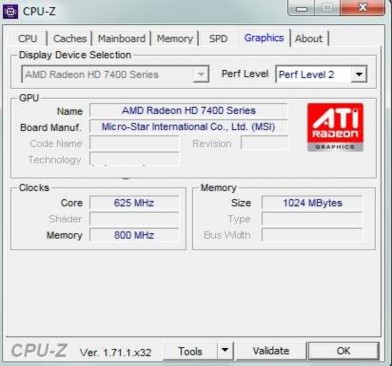
Figure 5.37. Graphics Card Details
+ Display Device Selection: If there are multiple graphics cards, this section will light up and select the corresponding card. If there is only 1 card, this section will be dimmed as shown in the picture.
+ Name: Name of the graphics chip manufacturer, most popular are ATI and Geforce
+ Code Name: Name of the running graphics chip.
+ Technology: Just like in the CPU section, the smaller this parameter is, the better.
+ Size: Graphics card memory capacity.
+ Type: Processing type (Example: 64-bit, 128-bit, 256-bit. The higher this parameter is, the more advanced the graphics card is and the better the graphics processing.
g) About Tab: View information about CPU-Z software version
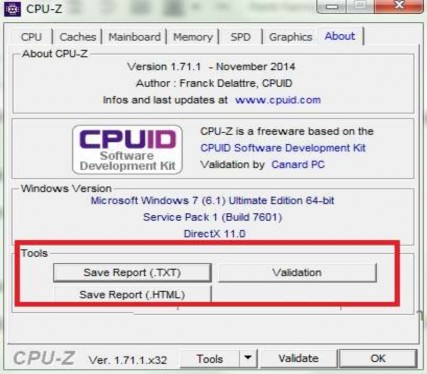
Figure 5.38. Software version information
This section displays the version of CPU-Z software you are using. It is recommended to use the latest version to check.
In the Tools section: Helps export files in .TXT or .HTML format to help manage computers in a company more easily.
2) Use GPU-Z software
GPU-Z allows checking information about Graphics Card, all detailed parameters of Graphics Processing Chip.
You can download the software at: http://download.com.vn/gpu-z/download
For example, when checking a computer's hardware using GPU-Z software, the main interface of GPU-Z software is as follows:
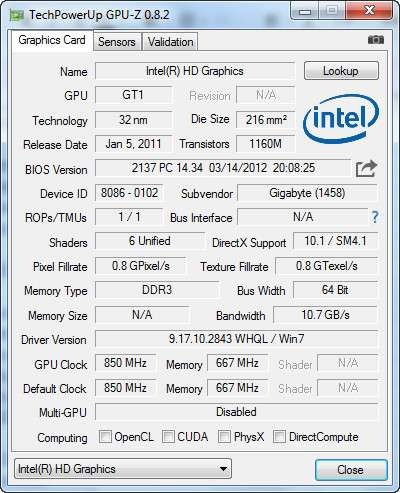
Figure 5.39. Main interface of GPU-Z software
The Graphics Card section will display hardware and GPU parameters as well as Graphics Card clock speed, manufacturing technology, product code, size, BIOS version, manufacturer, connection interface, processing speed, bandwidth, RAM, DirectX version, Driver version, Dual Card mode,....
3) View information using Windows system
You can check your computer information using the System Properties utility on Windows. To do this, right-click on the My Computer icon on the desktop and select Properties.
In the System Properties dialog box, you can see the basic configuration information of your computer. This includes the CPU clock speed, the amount of RAM, whether the system is 32-bit or 64-bit, and some other basic information.
Figure 5.40. System Properties on Windows
If you want to see more detailed components, you will use the DirectX Diagnostic utility. Here's how: In the Run dialog box, enter the keyword "dxdiag" and press Enter.
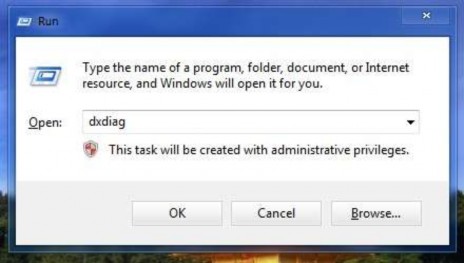
Figure 5. 41. Open the DirectX Diagnostic utility
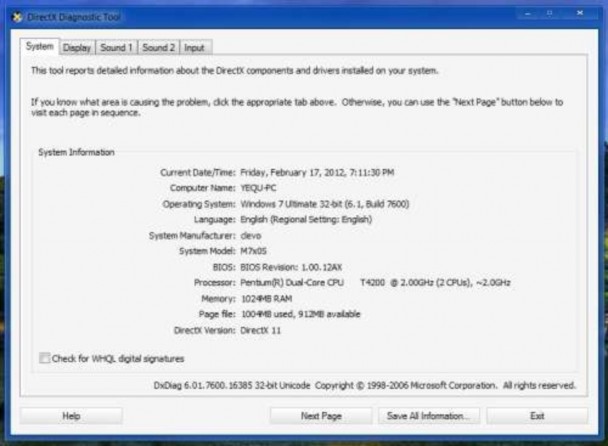
Figure 5.42. DirectX Diagnostic main interface
The System tab shows complete configuration information of the computer system. The Display tab shows the Graphics Card.
The Sound tab shows information about the Sound Card.
The Input tab shows information about connected devices such as a mouse or keyboard.