
Cursor menu : Osnap setting.
Type in : Osnap/ Ddosnap.
Toolbar : Osnap.
To assign permanent capture mode using the Drafting Setting dialog box, we have the following ways:
+Execute Ddosnap, Osnap, Ddrmodes commands.
+Press Shift or Ctrl and the right mouse button at the same time when the cursor is in the graphics area, the Osnap Shotrcut menu will appear and select Osnap Setting.
+If the permanent point capture mode is not assigned, we can select the osnap button on the Status bar.
3. Use the coordinate input method to draw:
CAL (Calculator) can define points using vector and numeric expressions to calculate common functions and vector operations. While using the ACAD command, we can use the CAL command as an intermediate command by adding a ' before CAL ('CAL). Before using the CAL command, it is necessary to turn off the permanent point capture mode.
Common calculations and functions in ACAD.
+ / - / * / / : Add, subtract, multiply, divide numbers and vectors. 0: Group of expressions.
^: Power of a number.
Abs(x): Absolute value of real number x. Abs(v): Length of vector.
Ang (P 1 ,P 2 ): Angle between line P 1 P 2 and x-axis. Dist (P 1 ,P 2 ): Distance between 2 points P 1 , P 2 .
Dist (cen,cen)/2: Half the distance between the 2 centers of an arc, circle, ellipse. Ill (P 1 ,P 2 ,P 3 ,P 4 ): Distance between the 2 lines P 1 P 2 and P 3 P 4 .
Mee (end+end)/2: Finds the midpoint of a line determined by 2 points.
Rad: Radius of the arc.
Pld (P 1 ,P 2 , dist): Find a point on line P 1 P 2 and a given distance dist from P 1 .
R2d(x): Converts radian x to degrees.
Round(x): Rounds the real number x.
Rot (A, origin, ang): Rotate a point A around an angle origin 1 angle ang.
For example: Draw a circle with center K between centers O and I, with a radius equal to half the radius of the large circle.
Command: C
Specify center point for circle or {2P/3P/Ttr (Tan tan radius)]: 'CAL
>>Expression: (cen+cen)/2
>>Select entity for CEN snap: Select circle O
>>Select entity for CEN snap: Select circle I Specify radius of circle or {Diameter}:'CAL
>>Expression: rad/5

Select circle, arc, polyline segment for RAD function: Select large circle.
During the drawing process, sometimes we have to enter a
point whose coordinates coincide with at most 2 points
points available on the drawing. For example, we want to draw a circle with
The center is the intersection of the two diagonals of a rectangle but you don't want to draw those two diagonals.

We see that the center of the circle has coordinate X as the coordinate of the midpoint of the horizontal side, coordinate Y is the coordinate Y of the midpoint of the vertical side. Therefore, we can use the coordinate filtering method. To enter coordinates using this method, we must enter a "." before the corresponding character of the coordinate to be selected.
Example: Command: C
Specify center point for circle or {2P/3P/TTR}: enter .X of (we enter MID) of (we choose horizontal edge)
need YZ: (we continue to enter .YZ)
of (we enter MID) of (we choose vertical edge) We have determined the center of the circle.
In summary, the coordinate filtering method can enter .X, .Y, .Z, .XY, .YZ, .
4.Draw lines and polygons using basic commands:
4.1. Polyline drawing command (Pline)
A polyline is a polygonal line, which can consist of straight lines and circular arcs, but AutoCAD only sees it as a single object. When drawing, we can choose the thickness of the line.
a.Enter command
Pulldown Menu: DrawPolyline Screen menu: DRAW1Pline
Toolbar :
Type command: Pline or PL
b. Statement structure
Command: pl
Specify start point: enter the first point of the pline. Current line width is 0.0000:
Specify next point or {Arc/Close/Halfwidth/Length/Undo/Width}: enter the next point or select A to switch to arc drawing mode.
* Options in the Pline command when drawing a line segment
+Close ( C ): This function allows drawing a line to close the pline. If the line drawn before using the Close function is a Line, the Close line is also a Line. If the line drawn before using the Close function is an Arc, the Close line is also an Arc. They both start at the current point and end at the starting point.
+ Halfwidth (H ): Enter half the thickness of the line to be drawn:
Starting halfwidth < >: Enter the half width at the beginning of the line segment
about to draw
about to draw
Ending halfwidth < >: Enter half width at the end of the line segment
+Width (W ): Enter the thickness of the line to be drawn, this function is similar to Halfwidth.
+Length (L ): Draw a straight line adjacent to the previous line. If the previous line is a straight line, the new line Length will extend the old line. If the old line is an arc, the new line Length will be its tangent at the end point with the length we enter.
+Undo (U ): Cancel the previous stroke.
* Options in the Pline command when drawing an arc
+Close (CL ), Haldwidth, Width, Undo are similar to in drawing mode
Line.
+Angle (A ): Draw an arc (Start, Angle, End).
Specify included angle: Enter the included angle value.
Specify endpoint of arc or {Center/Radius}: Enter the endpoint location,
center or radius.
+Center (CE ): Draw an arc (Start, Center, Angle or Length).
+Direction (D ): Draw an arc (Start, Direction, Endpoint).
+Radius (R ): Draw an arc (Start, Radius, Endpoint or Angle).
+Second pt (S ): Draw an arc using 3 points.
+Line (L ): Return to drawing a straight line.
c.Pline Edit (Pedit)
Pline allows editing of the entire polyline or its vertices and segments.
Enter command: Pulldown menu: Modify/ Object/ Pline Toolbar :
Type: Pedit
Command structure:
Command: Pedit
Select polyline: Select the polyline to edit.
If the selected object is a Line or Arc and not a polyline, a prompt appears: Object selected is not a polyline.
Do you want to turn it to one? <Yes>: Convert the selected object to a polyline. The following prompt appears:
Enter an option{ Close/Join/Width/Edit vertex/Fit/Spline/Decurve/Ltype gen/Undo}:
Options:
Close: Closes the polyline. After performing this function, the Close position is replaced by the Open function, allowing us to cancel the previously performed Close function.
Join: Joins other lines, arcs or polylines with the originally selected polyline into a single polyline. Note that polylines can only be joined to other lines, arcs or polylines if they form a continuous line. After joining, ACAD will notify the number of joined objects.
Width: Specify the width for the polyline, a prompt appears: Specify new width for all segment: Enter the new width for the polyline.
We cannot change a circle to a polyline, so we cannot change the width of the circle. However, we can do the following:
-Draw a circle using the arcs of the Pline command, then change the width of the circle using Pedit.
-Use the Break command to cut the circle into an arc, then use Pedit to change the width of the arc and finally use Close to close the arc.
- Fit: Converts a polyline into a curve that is a set of consecutive arcs passing through the vertices of the polyline.
Spline: Convert polyline to 2nd order Spline tangent at midpoint of polyline segments when Splinetype =5, and Splinetype=6 is 3rd order Spline curve.
To change the Splinetype variable: Command: Splinetype
Enter new value for splinetype<5>: enter new value for Splinetype variable, default is closest value.


Decurve: To convert circular arcs into straight lines.

Ltype gen: Ltype gen =ON then the current linetype will run evenly on the polyline. Ltype gen =OFF then solid dashes will appear at the start and end of each segment.
Edit vertex: Edit vertices or segments of a polyline.
4.2. Command to draw a regular polygon with n sides (Polygon) a. Enter the command

Pulldown Menu: DrawPolygon
Toolbar: Polygon command button Type command: Polygon or pol
b. Statement structure
Command: pol
Enter numbers of side<4>: Enter the number of polygon sides.
Specify center of polygon or {Edge}: Enter the coordinates of the circle center.
* Draw a regular polygon inscribed in a circle
Enter an option (Inscribed in Circle/Circumscribbled about circle): I Specify radius of Circle: enter the radius of the circle.
* Draw a regular polygon circumscribing a circle
Enter an option (Inscribed in Circle/Circumscribbled about circle): C Specify radius of Circle: enter the radius of the circle.
* Draw a regular polygon with 1 edge
Specify center of polygon or {Edge}:E

Specify first endpoint of Edge: enter 1 vertex of Polygon. Specify second endpoint of Edge: enter 2 vertex of Polygon.
B. REVIEW QUESTIONS AND EXERCISES:
I. Review questions
1. Question 1: List 8 commonly used capture points.
2. Question 2: Describe the syntax of the Polygon statement?
II. Exercises
80
120
Exercise 1: Use the Line, ARC, Polyline commands to draw the following shapes:
35
70
60
100
1 0
2 0
7 0
2 0
24
5 6
20
20
29
35
58
R 25
R 40
80
1 0
30 12030
60
100
90
Exercise 2: Use the Line, Polygon, and Polyline commands to draw the following shapes.
60°
100
50
60°
60
38
50
R5
4 l? Ø 10
10
20
61
81
Ø100
Ø40
R50
50
9
30
21 11 19
100
Ø40
100
100
Ø40
R50
Ø80 |
Maybe you are interested!
-

 Sports Practice Motivation of Students at Thanh Hoa University of Culture, Sports and Tourism (N = 485)
 -
 Car body electrical practice - 8
zt2i3t4l5ee
zt2a3gs
zt2a3ge
zc2o3n4t5e6n7ts
If the voltage is out of specification, replace the wire or connector.
If the voltage is within specification, install the front fog light relay and follow step 5.
Step 5 Check the front fog light switch
- Remove the D4 connector of the fog light switch
- Use a multimeter to measure the resistance of the front fog light switch.
Measurement location
Condition
Standard
D4-3 (BFG) -D4-4 (LFG)
Light switchFront Fog OFF
>10kΩ
D4-3 (BFG) -D4-4 (LFG)
Front fog light switchON
<1 Ω
- Standard resistor
D4 connector is located on the combination switch assembly.
If the resistance is out of specification, replace the combination switch (the fog light switch is located in the combination switch).
If the resistance is within specification, follow step 6.
Step 6 Check wiring and connectors (front fog light relay-light selector switch)
- Disconnect connector D4 of the combination switch assembly
- Use a voltmeter to measure the voltage value of jack D4 on the wire side.
Measurement location
Control modecontrol
Standard
D4-3 (BFG) - (-) AQ
TAIL
11 to 14 V
D4 connector for the wiring of the combination switch assembly
If the voltage does not meet the standard, replace the wire or connector.
If the voltage is within standard, there may have been an error in the previous measurements.
Step 7 Check the front fog lights
- Remove the front fog light electrical connector.
- Supply battery voltage to the fog lamp terminals
Jack 8, B9 of front fog lamp on the electrical side
blind first.
Power supply location
Terms and Conditions
Battery positive terminal - Terminal 2Battery negative terminal - Terminal 1
Fog lightsbefore morning
- If the light does not come on, replace the bulb.
If the light is on, re-plug the jack and continue to step 8.
Step 8 Check wiring and connectors (relay and front fog lights)
- Disconnect the B8 and B9 connectors of the front fog lights.
- Use a voltmeter to measure voltage at the following locations:
Measurement location
Switch location
Terms and Conditions
B8-2 - (-) AQ
Electric lock ON TAIL size switchFog switch ON
11 to 14 V
B9-2 - (-) AQ
Electric lock ONTAIL size switch Fog switch ON
11 to 14 V
B8 and B9 connectors on the front fog lamp wiring side
Voltage is not up to standard, repair or replace the jack. If up to standard, there may have been an error in the measurement process.
2.2.4. Procedure for removing, installing and adjusting fog lights 1. Procedure for removing
- Remove the front inner ear pads
Use a screwdriver to remove the 3 screws and remove the front part of the front inner ear liner
-Remove the fog light assembly
+ Disconnect the connector.
+ Use a screwdriver to remove 3 screws to remove the fog light cover
2. Installation sequence
-Rotate the fog lamp bulb in the direction indicated by the arrow as shown in the figure and remove the fog lamp from the fog lamp assembly.
-Rotate the fog light bulb in the direction indicated by the arrow as shown in the figure and install the light into the fog light assembly.
- Use a screwdriver to install the fog light cover
-Install the electrical connector
Attention: Be careful not to damage the plastic thread on the lamp assembly.
- Install the front inner ear pads
Use a screwdriver to install the front inner bumper with 3 screws.
3. Prepare the vehicle to adjust the fog light convergence. Prepare the vehicle:
- Make sure there is no damage or deformation to the vehicle body around the fog lights.
- Add fuel to the fuel tank
- Add oil to standard level.
- Add engine coolant to standard level.
- Inflate the tire to standard pressure.
- Place spare tire, tools and jack in original design position
- Do not leave any load in the luggage compartment.
- Let a person weighing about 75 kg sit in the driver's seat.
4. Prepare to check the fog light convergence
a/ Prepare the vehicle status as follows:
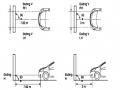
- Place the car in a dark enough place to see the lines. The lines are the dividing line, below which the light from the fog lights can be seen but above which it cannot.
- Place the car perpendicular to the wall.
- Keep a distance of 7.62 m between the center of the fog lamp and the wall.
- Park the car on level ground.
- Press the car down a few times to stabilize the suspension.
Note: A distance of approximately 7.62 m is required between the vehicle (fog lamp center) and the wall to adjust the convergence correctly. If the distance of 7.62 m cannot be achieved, set the correct distance of 3 m to check and adjust the fog lamp convergence. (Since the target area varies with the distance, please follow the instructions as shown in the figure.)
b/ Prepare a piece of thick white paper about 2 m high and 4 m wide to use as a screen.
c/ Draw a vertical line through the center of the screen (line V).
d/ Set the screen as shown in the picture. Note:
- Keep the screen perpendicular to the ground.
- Align the V line on the screen with the center of the vehicle.
e/Draw the reference lines (H, V LH and V RH lines) on the screen as shown in the figure.HINT:
Mark the center of the fog lamp on the screen. If the center mark cannot be seen on the fog lamp, use the center of the fog lamp or the manufacturer's name mark on the fog lamp as the center mark.
H line (fog light height):
Draw a line across the screen so that it passes through the center mark. Line H should be at the same height as the center mark of the fog light bulb.
Line V LH, V RH (center mark position of left fog lamp LH and right fog lamp RH):
Draw two lines so that they intersect line H at the center marks.
5. Check the fog light convergence
a/ Cover the fog lamp or remove the connector of the other side fog lamp to prevent light from the unchecked fog lamp from affecting the fog lamp convergence test.
b/ Start the engine.
c/ Turn on the fog lights and make sure that the dividing line is outside the standard area as shown in the drawing.
6. Adjust the fog light convergence
Use a screwdriver to adjust the fog light to the standard area by turning the toe adjustment screw.
Note: If the screw is adjusted too far, loosen it and then tighten it again, so that the last rotation of the light adjustment screw is clockwise.
3. Self-study questions
1. Describe the operating principle of the lighting system with automatic headlight function
2. Describe the operating principle of the lighting system with the function of rotating headlights when turning
3. Draw diagram and connect lighting system on Hyundai Porter car
4. Draw diagram and connect lighting system on Honda Accord 1992
5. Draw the lighting circuit on a 1993 Toyota Lexus
LESSON 3 MAINTENANCE AND REPAIR OF SIGNAL SYSTEM
I. IMPLEMENTATION GOAL
After completing this lesson, students will be able to:
- Distinguish between types of signals on cars
- Correctly describe common symptoms and suspected areas causing damage.
- Connecting signal circuits ensures technical requirements
- Disassemble, install, check, maintain and repair the signal system to ensure technical requirements.
- Ensure safety in work and industrial hygiene
II. LESSON CONTENT
1. General description
The signal system equipped on cars aims to create signals to notify other vehicles participating in traffic about the vehicle's operating status such as: stopping, parking, braking, reversing, turning...
Signals are used either by light such as headlamps, brake lights, turn signals….. or by sound such as horns, reverse music….
Just like the lighting system. A signal system circuit usually consists of: battery, fuse, wire, relay, electrical load and control switch. Only some switches of the signal system are on the combination switch. The switches of other signals are usually located in different locations such as in the gearbox or brake pedal……
2. Maintenance and repair
2.1. Turn signals and hazard lights
The installation location of the turn signal is shown in Figure 3.1. The turn signal control switch is located in the combination switch under the steering wheel. Turning this switch to the right or left will make the turn signal turn right or left.
The hazard light switch is used when the vehicle has a problem while participating in traffic. When the hazard light switch is turned on, all the turn signals on the vehicle will light up at a certain frequency. The hazard light switch is usually placed separately from the turn signal switch (some old cars integrate the hazard and turn signal switches on the same combination switch cluster).
Figure 3.1 Turn signal switch Figure 3.2 Hazard switch
The part that generates the flashing frequency for the lights is called a turn signal relay. The turn signal relay usually has 3 terminals: B (positive power supply); E (negative power supply); L (providing the turn signal switch to distribute to the
lamp)
2.1.1. Circuit diagram
To generate the frequency for the turn signal, a turn signal relay is used in the turn signal circuit. The current from the turn signal relay will be sent to the turn signal switch assembly to distribute the current to the turn signal lights for the driver's purpose.
Figure 3.3. Schematic diagram of a turn signal circuit without a hazard switch
1. Battery; 2. Electric lock; 3. Turn signal relay; 4. Turn signal switch; 5. Turn signal lamp; 6. Turn signal lamp; 7. Hazard switch
Figure 3.4 Schematic diagram of turn signal circuit with hazard switch
1. Battery; 2. Combination switch cluster; 3. Turn signal;
4. Turn signal light; 5. Turn signal relay
Today's cars no longer use three-pin turn signal relays (B, L, E) but use eight-pin turn signal relays (figure 3.5) (pin number 8 is used for hazard lights).
For this type, the current supplying the turn signal lights is supplied directly from the turn signal relay to the lights.
div.maincontent .p { color: black; font-family:"Times New Roman", serif; font-style: normal; font-weight: normal; text-decoration: none; font-size: 14pt; margin:0pt; } div.maincontent p { color: black; font-family:"Times New Roman", serif; font-style: normal; font-weight: normal; text-decoration: none; font-size: 14pt; margin:0pt; } div.maincontent .s1 { color: black; font-family:"Times New Roman", serif; font-style: normal; font-weight: normal; text-decoration: none; font-size: 13pt; } div.maincontent .s2 { color: black; font-family:"Times New Roman", serif; font-style: italic; font-weight: normal; text-decoration: none; font-size: 14pt; } div.maincontent .s3 { color: black; font-family:"Times New Roman", serif; font-style: normal; font-weight: normal; text-decoration: none; font-size: 14pt; } div.maincontent .s4 { color: black; font-family:"Times New Roman", serif; font-style: normal; font-weight: normal; text-decoration: none; font-size: 13pt; } div.maincontent .s5 { color: black; font-family:"Times New Roman", serif; font-style: normal; font-weight: normal; text-decoration: none; font-size: 13pt; vertical-align: 1pt; } div.maincontent .s6 { color: black; font-family:"Times New Roman", serif; font-style: normal; font-weight: normal; text-decoration: none; font-size: 11pt; } div.maincontent .s7 { color: black; font-family:"Times New Roman", serif; font-style: normal; font-weight: normal; text-decoration: none; font-size: 14pt; vertical-align: -9pt; } div.maincontent .s8 { color: black; font-family:"Times New Roman", serif; font-style: normal; font-weight: normal; text-decoration: none; font-size: 11pt; } div.maincontent .s9 { color: #008000; font-family:"Times New Roman", serif; font-style: normal; font-weight: normal; text-decoration: none; font-size: 14pt; } div.maincontent .s10 { color: black; font-family:"Times New Roman", serif; font-style: italic; font-weight: normal; te
Car body electrical practice - 8
zt2i3t4l5ee
zt2a3gs
zt2a3ge
zc2o3n4t5e6n7ts
If the voltage is out of specification, replace the wire or connector.
If the voltage is within specification, install the front fog light relay and follow step 5.
Step 5 Check the front fog light switch
- Remove the D4 connector of the fog light switch
- Use a multimeter to measure the resistance of the front fog light switch.
Measurement location
Condition
Standard
D4-3 (BFG) -D4-4 (LFG)
Light switchFront Fog OFF
>10kΩ
D4-3 (BFG) -D4-4 (LFG)
Front fog light switchON
<1 Ω
- Standard resistor
D4 connector is located on the combination switch assembly.
If the resistance is out of specification, replace the combination switch (the fog light switch is located in the combination switch).
If the resistance is within specification, follow step 6.
Step 6 Check wiring and connectors (front fog light relay-light selector switch)
- Disconnect connector D4 of the combination switch assembly
- Use a voltmeter to measure the voltage value of jack D4 on the wire side.
Measurement location
Control modecontrol
Standard
D4-3 (BFG) - (-) AQ
TAIL
11 to 14 V
D4 connector for the wiring of the combination switch assembly
If the voltage does not meet the standard, replace the wire or connector.
If the voltage is within standard, there may have been an error in the previous measurements.
Step 7 Check the front fog lights
- Remove the front fog light electrical connector.
- Supply battery voltage to the fog lamp terminals
Jack 8, B9 of front fog lamp on the electrical side
blind first.
Power supply location
Terms and Conditions
Battery positive terminal - Terminal 2Battery negative terminal - Terminal 1
Fog lightsbefore morning
- If the light does not come on, replace the bulb.
If the light is on, re-plug the jack and continue to step 8.
Step 8 Check wiring and connectors (relay and front fog lights)
- Disconnect the B8 and B9 connectors of the front fog lights.
- Use a voltmeter to measure voltage at the following locations:
Measurement location
Switch location
Terms and Conditions
B8-2 - (-) AQ
Electric lock ON TAIL size switchFog switch ON
11 to 14 V
B9-2 - (-) AQ
Electric lock ONTAIL size switch Fog switch ON
11 to 14 V
B8 and B9 connectors on the front fog lamp wiring side
Voltage is not up to standard, repair or replace the jack. If up to standard, there may have been an error in the measurement process.
2.2.4. Procedure for removing, installing and adjusting fog lights 1. Procedure for removing
- Remove the front inner ear pads
Use a screwdriver to remove the 3 screws and remove the front part of the front inner ear liner
-Remove the fog light assembly
+ Disconnect the connector.
+ Use a screwdriver to remove 3 screws to remove the fog light cover
2. Installation sequence
-Rotate the fog lamp bulb in the direction indicated by the arrow as shown in the figure and remove the fog lamp from the fog lamp assembly.
-Rotate the fog light bulb in the direction indicated by the arrow as shown in the figure and install the light into the fog light assembly.
- Use a screwdriver to install the fog light cover
-Install the electrical connector
Attention: Be careful not to damage the plastic thread on the lamp assembly.
- Install the front inner ear pads
Use a screwdriver to install the front inner bumper with 3 screws.
3. Prepare the vehicle to adjust the fog light convergence. Prepare the vehicle:
- Make sure there is no damage or deformation to the vehicle body around the fog lights.
- Add fuel to the fuel tank
- Add oil to standard level.
- Add engine coolant to standard level.
- Inflate the tire to standard pressure.
- Place spare tire, tools and jack in original design position
- Do not leave any load in the luggage compartment.
- Let a person weighing about 75 kg sit in the driver's seat.
4. Prepare to check the fog light convergence
a/ Prepare the vehicle status as follows:
- Place the car in a dark enough place to see the lines. The lines are the dividing line, below which the light from the fog lights can be seen but above which it cannot.
- Place the car perpendicular to the wall.
- Keep a distance of 7.62 m between the center of the fog lamp and the wall.
- Park the car on level ground.
- Press the car down a few times to stabilize the suspension.
Note: A distance of approximately 7.62 m is required between the vehicle (fog lamp center) and the wall to adjust the convergence correctly. If the distance of 7.62 m cannot be achieved, set the correct distance of 3 m to check and adjust the fog lamp convergence. (Since the target area varies with the distance, please follow the instructions as shown in the figure.)
b/ Prepare a piece of thick white paper about 2 m high and 4 m wide to use as a screen.
c/ Draw a vertical line through the center of the screen (line V).
d/ Set the screen as shown in the picture. Note:
- Keep the screen perpendicular to the ground.
- Align the V line on the screen with the center of the vehicle.
e/Draw the reference lines (H, V LH and V RH lines) on the screen as shown in the figure.HINT:
Mark the center of the fog lamp on the screen. If the center mark cannot be seen on the fog lamp, use the center of the fog lamp or the manufacturer's name mark on the fog lamp as the center mark.
H line (fog light height):
Draw a line across the screen so that it passes through the center mark. Line H should be at the same height as the center mark of the fog light bulb.
Line V LH, V RH (center mark position of left fog lamp LH and right fog lamp RH):
Draw two lines so that they intersect line H at the center marks.
5. Check the fog light convergence
a/ Cover the fog lamp or remove the connector of the other side fog lamp to prevent light from the unchecked fog lamp from affecting the fog lamp convergence test.
b/ Start the engine.
c/ Turn on the fog lights and make sure that the dividing line is outside the standard area as shown in the drawing.
6. Adjust the fog light convergence
Use a screwdriver to adjust the fog light to the standard area by turning the toe adjustment screw.
Note: If the screw is adjusted too far, loosen it and then tighten it again, so that the last rotation of the light adjustment screw is clockwise.
3. Self-study questions
1. Describe the operating principle of the lighting system with automatic headlight function
2. Describe the operating principle of the lighting system with the function of rotating headlights when turning
3. Draw diagram and connect lighting system on Hyundai Porter car
4. Draw diagram and connect lighting system on Honda Accord 1992
5. Draw the lighting circuit on a 1993 Toyota Lexus
LESSON 3 MAINTENANCE AND REPAIR OF SIGNAL SYSTEM
I. IMPLEMENTATION GOAL
After completing this lesson, students will be able to:
- Distinguish between types of signals on cars
- Correctly describe common symptoms and suspected areas causing damage.
- Connecting signal circuits ensures technical requirements
- Disassemble, install, check, maintain and repair the signal system to ensure technical requirements.
- Ensure safety in work and industrial hygiene
II. LESSON CONTENT
1. General description
The signal system equipped on cars aims to create signals to notify other vehicles participating in traffic about the vehicle's operating status such as: stopping, parking, braking, reversing, turning...
Signals are used either by light such as headlamps, brake lights, turn signals….. or by sound such as horns, reverse music….
Just like the lighting system. A signal system circuit usually consists of: battery, fuse, wire, relay, electrical load and control switch. Only some switches of the signal system are on the combination switch. The switches of other signals are usually located in different locations such as in the gearbox or brake pedal……
2. Maintenance and repair
2.1. Turn signals and hazard lights
The installation location of the turn signal is shown in Figure 3.1. The turn signal control switch is located in the combination switch under the steering wheel. Turning this switch to the right or left will make the turn signal turn right or left.
The hazard light switch is used when the vehicle has a problem while participating in traffic. When the hazard light switch is turned on, all the turn signals on the vehicle will light up at a certain frequency. The hazard light switch is usually placed separately from the turn signal switch (some old cars integrate the hazard and turn signal switches on the same combination switch cluster).
Figure 3.1 Turn signal switch Figure 3.2 Hazard switch
The part that generates the flashing frequency for the lights is called a turn signal relay. The turn signal relay usually has 3 terminals: B (positive power supply); E (negative power supply); L (providing the turn signal switch to distribute to the
lamp)
2.1.1. Circuit diagram
To generate the frequency for the turn signal, a turn signal relay is used in the turn signal circuit. The current from the turn signal relay will be sent to the turn signal switch assembly to distribute the current to the turn signal lights for the driver's purpose.
Figure 3.3. Schematic diagram of a turn signal circuit without a hazard switch
1. Battery; 2. Electric lock; 3. Turn signal relay; 4. Turn signal switch; 5. Turn signal lamp; 6. Turn signal lamp; 7. Hazard switch
Figure 3.4 Schematic diagram of turn signal circuit with hazard switch
1. Battery; 2. Combination switch cluster; 3. Turn signal;
4. Turn signal light; 5. Turn signal relay
Today's cars no longer use three-pin turn signal relays (B, L, E) but use eight-pin turn signal relays (figure 3.5) (pin number 8 is used for hazard lights).
For this type, the current supplying the turn signal lights is supplied directly from the turn signal relay to the lights.
div.maincontent .p { color: black; font-family:"Times New Roman", serif; font-style: normal; font-weight: normal; text-decoration: none; font-size: 14pt; margin:0pt; } div.maincontent p { color: black; font-family:"Times New Roman", serif; font-style: normal; font-weight: normal; text-decoration: none; font-size: 14pt; margin:0pt; } div.maincontent .s1 { color: black; font-family:"Times New Roman", serif; font-style: normal; font-weight: normal; text-decoration: none; font-size: 13pt; } div.maincontent .s2 { color: black; font-family:"Times New Roman", serif; font-style: italic; font-weight: normal; text-decoration: none; font-size: 14pt; } div.maincontent .s3 { color: black; font-family:"Times New Roman", serif; font-style: normal; font-weight: normal; text-decoration: none; font-size: 14pt; } div.maincontent .s4 { color: black; font-family:"Times New Roman", serif; font-style: normal; font-weight: normal; text-decoration: none; font-size: 13pt; } div.maincontent .s5 { color: black; font-family:"Times New Roman", serif; font-style: normal; font-weight: normal; text-decoration: none; font-size: 13pt; vertical-align: 1pt; } div.maincontent .s6 { color: black; font-family:"Times New Roman", serif; font-style: normal; font-weight: normal; text-decoration: none; font-size: 11pt; } div.maincontent .s7 { color: black; font-family:"Times New Roman", serif; font-style: normal; font-weight: normal; text-decoration: none; font-size: 14pt; vertical-align: -9pt; } div.maincontent .s8 { color: black; font-family:"Times New Roman", serif; font-style: normal; font-weight: normal; text-decoration: none; font-size: 11pt; } div.maincontent .s9 { color: #008000; font-family:"Times New Roman", serif; font-style: normal; font-weight: normal; text-decoration: none; font-size: 14pt; } div.maincontent .s10 { color: black; font-family:"Times New Roman", serif; font-style: italic; font-weight: normal; te -
 Enforcement of fines from practice in District 2, Ho Chi Minh City - 8
 -
 Crime of rape of people under 16 years old from the practice of Soc Trang province - 10
 -
 Characteristics of the Practice of the Right to Prosecute During the Investigation Stage of a Case of Intentionally Causing Injury or Harm to the Health of Another Person.
150
COURSE CODE CNOT 08.1
CHAPTER 5: USING HELP COMMANDS AND OPTIONS STATUE | Time (hours) | |||||
LT | TH | BT | KT | TS | ||
3 | 9 | 0 | 0 | 12 | ||
Target: After completing this chapter, students will be able to: - Select and delete single objects or groups of objects. - Use editing commands to draw quickly. - Change the drawing size to a required ratio. - Practice being careful, meticulous and accurate in work. | ||||||
Key issues to be covered - 1. Help commands and object selection - 2. Command to delete object using ERASE command - 3. Object selection method - 4. Move objects using the MOVE command - 5. Trim a part of an object between 2 objects with the TRIM command - 6. Cut a part of the object between 2 points, select the BREAK command - 7. Extend the EXTEND command object - 8. Rotate objects around a point with the ROTATE command - 9. Resize objects proportionally with the SCALE command | ||||||